Managing server services
On the computer that runs server services, you find server manager tray icons in the notification area. Through these icons, you can get information about the services and perform certain tasks. This includes, for example, checking the state of the services, viewing logs or status messages, and starting and stopping the services.
Server manager tray icons
The tray icons in the table show the different states of the services running on the management server, recording server, failover recording server, and event server. They are visible on the computers with the servers installed, in the notification area:
Management Server Manager | Recording Server Manager | Event Server Manager | Failover Recording Server Manager | Description |
|---|---|---|---|---|
 |  |  |  | Running Appears when a server service is enabled and started. NoteIf the Failover Recording Server service is running, it can take over if the standard recording servers fails. |
 |  |  |  | Stopped Appears when a server service has stopped. NoteIf the Failover Recording Server service stops, it cannot take over if the standard recording server fails. |
 |  |  |  | Starting Appears when a server service is in the process of starting. Under normal circumstances, the tray icon changes after a short while to Running. |
 |  |  | Stopping Appears when a server service is in the process of stopping. Under normal circumstances, the tray icon changes after a short while to Stopped. | |
 |  | In indeterminate state Appears when the server service is initially loaded and until the first information is received, upon which the tray icon, under normal circumstances, changes to Starting and afterwards to Running. | ||
 |  | Running offline Typically appears when the Recording Server or Failover recording service is running but the Management Server service is not. |
Start or stop the Management Server service
The Management Server Manager tray icon indicates the state of the Management Server service, for example Running. Through this icon, you can start or stop the Management Server service. If you stop the Management Server service, you cannot use the Management Client.
In the notification area, right-click the Management Server Manager tray icon. A context-menu appears.
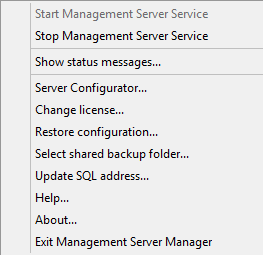
If the service has stopped, click Start Management Server service to start it. The tray icon changes to reflect the new state.
To stop the service, click Stop Management Server service.
Note
For more information, see Server manager tray icons.
Start or stop the Recording Server service
The Recording Server Manager tray icon indicates the state of the Recording Server service, for example Running. Through this icon, you can start or stop the Recording Server service. If you stop the Recording Server service, your system cannot interact with devices connected to the server. This means you cannot view live video or record video.
In the notification area, right-click the Recording Server Manager tray icon.
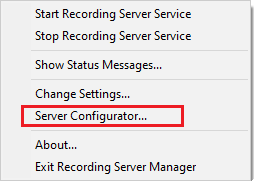
If the service has stopped, click Start Recording Server Service to start it. The tray icon changes to reflect the new state.
To stop the service, click Stop Recording Server Service.
Note
For more information, see Server manager tray icons.
View status messages for management server or recording server
In the notification area, right-click the relevant tray icon.
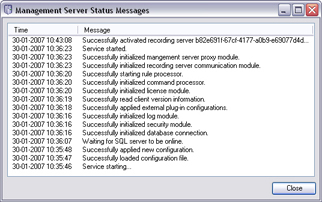
Select Show Status Messages. Depending on the server type, either the Management Server Status Messages or Recording Server Status Messages window appears, listing time-stamped status messages:
Manage encryption with the Server Configurator
Use the Server Configurator to select certificates on local servers for encrypted communication and register server services to make them qualified to communicate with the servers.
Open the Server Configurator from either the Windows startup menu, from the management server tray icon or from the recording server tray icon. See Server Configurator (Utility).
For more information, see: Certificates guide for Milestone XProtect products.
Start, stop, or restart the Event Server service
The Event Server Manager tray icon indicates the state of the Event Server service, for example Running. Through this icon, you can start, stop, or restart the Event Server service. If you stop the service, parts of the system will not work, including events and alarms. However, you can still view and record video. For more information, see Stopping the Event Server service.
In the notification area, right-click the Event Server Manager tray icon.
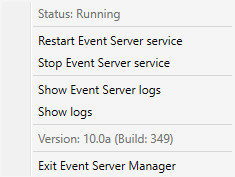
If the service has stopped, click Start Event Server service to start it. The tray icon changes to reflect the new state.
To restart or stop the service, click Restart Event Server service or Stop Event Server service.
Note
For more information about the tray icons, see Server manager tray icons.
Stopping the Event Server service
When installing MIP plug-ins in the event server, first you must stop the Event Server service and then, afterward, restart it. While the service is stopped, many areas of the VMS system will not function:
No events or alarms are stored in the event server. However, system and device events still trigger actions, for example start recording
XProtect extensions do not work in XProtect Smart Client and cannot be configured from the Management Client.
Analytic events do not work
Generic events do not work
No alarms are triggered
In XProtect Smart Client, map view items, alarm list view items, and the alarm manager workspace do not work
MIP plug-ins in the event server cannot run
MIP plug-ins in Management Client and XProtect Smart Client do not work correctly
View event server or MIP logs
You can view time-stamped information about event server activities in the event server log. Information about third party integrations is logged in the MIP log in a sub-folder in the Event Server folder.
In the notification area, right-click the Event Server Manager tray icon. A context-menu appears.
To view the 100 most recent lines in the event server log, click Show Event Server logs. A log viewer appears.
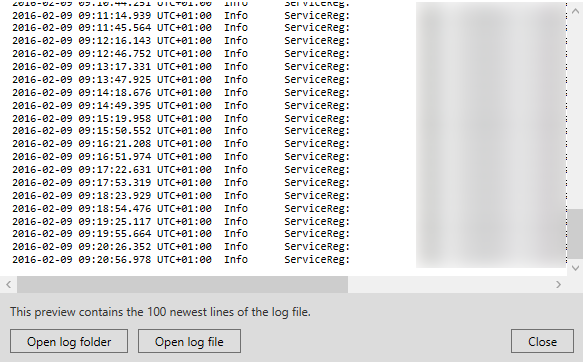
To view the log file, click Open log file.
To open the log folder, click Open log folder.
To view the 100 most recent lines in the MIP log, go back to the context menu, and click Show MIP logs. A log viewer is displayed.
Note
If someone removes the log file from the log directory, the menu items are grayed out. To open the log viewer, first you need to copy the log file back into its folder: C:\ProgramData\Milestone\XProtect Event Server\logs.
Enter the current system configuration password
If the system configuration password has been changed in the management server, you must enter the current system configuration password in the event server so that the system components will continue to work.
In the notification area, right-click the Event Server Manager tray icon. A context-menu appears.
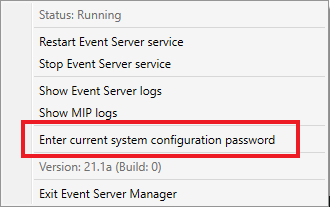
Click Enter current system configuration password.
Enter the same system configuration password that was entered in the management server.