Import client certificates
This section describes how to import client certificates onto a client workstation or device.
After you import a CA certificate to the Management Server or Recording Server, you can access it from any workstation or server in the network by going to the following address:
http://localhost/certsrv/
However, the address of the server that holds the certificate (private key) will take the place of "localhost." For example:
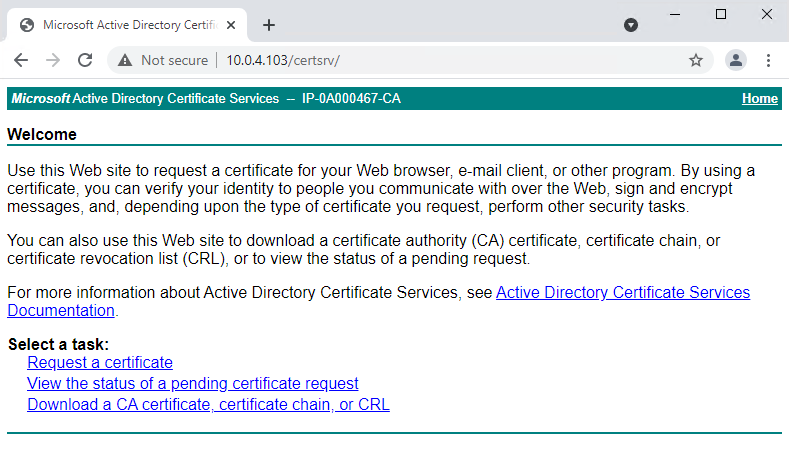
Certificate Server Webpage
This web-server is hosted on the Active Directory Certificate Services (AD CS) host server that holds the CA certificate.
Click Download a CA certificate, certificate chain, or CRL.
In the CA certificate field, select the CA certificate to be used with the XProtect system, and click Download CA certificate chain.
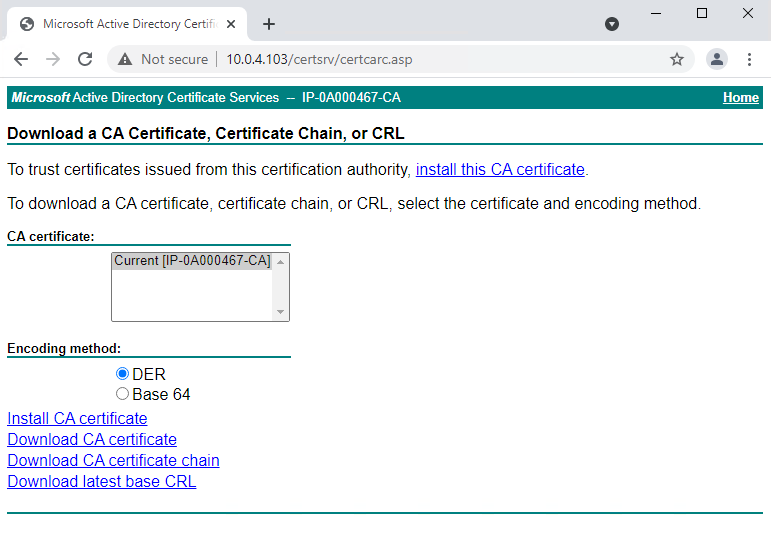
Download the CA Certificate Chain
Select DER encoded, and download the certificate chain.
Browse to the downloads folder, right-click the certificate, and select Install Certificate from the shortcut menu.
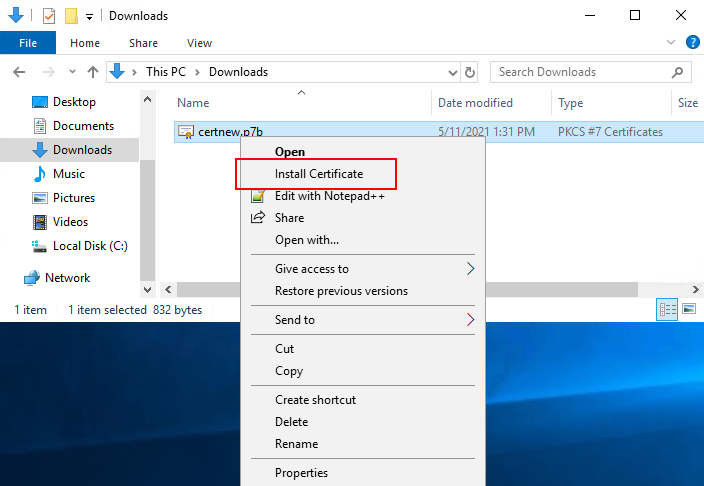
Install the Certificate.
This launches the Certificate Import Wizard.
Click Next.
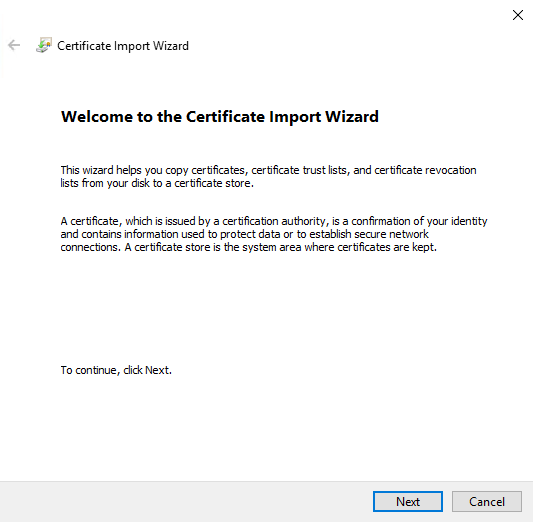
Install Certificate Wizard
Choose a store location. Select Place all certificates in the following store, and click the Browse button to open the Select Certificate Store window.
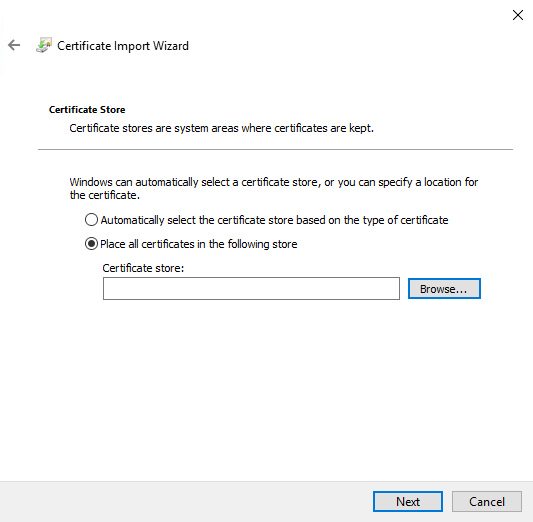
Select a specific certificate store location.
Navigate to the Third-Party Root Certification Authorities certificate store and click OK.
Click Next.
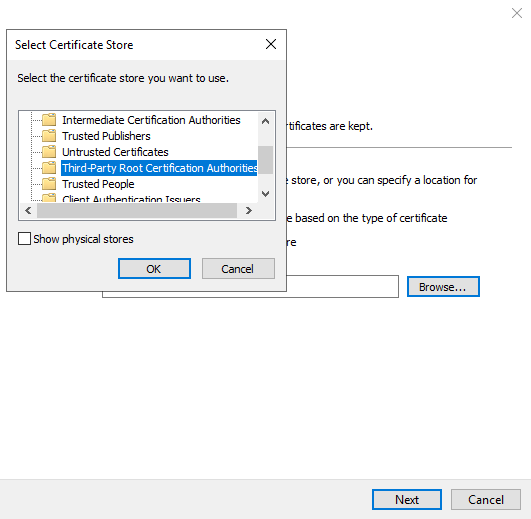
Third-Party Root Certificate Authorities
Finish the Certificate Import Wizard.
Now the workstation has imported the certificate components required to establish secure communications with the Management Server or Recording Server.