Adding in XProtect Management Client
Any device can be added to the XProtect system using the Universal driver as no checks for compatibility are done.
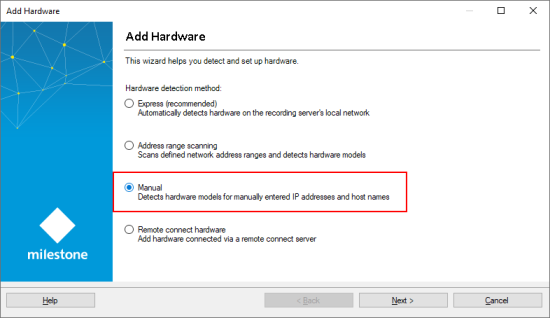
In the Management Client, select Add Hardware and select the Manual option.
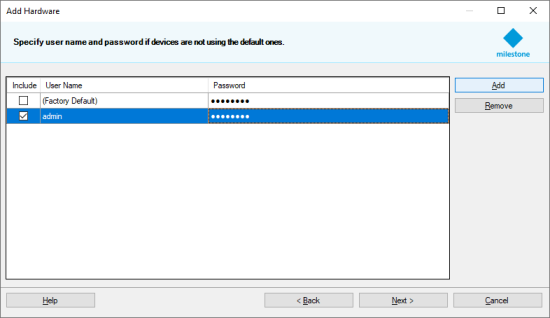
If the device requires authorization of the streams, add a new username and password and unselect the Factory Default option.
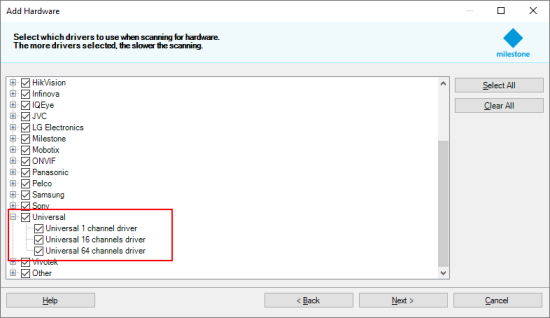
On the next step make sure that the Universal driver is selected in the list. You can use to avoid finding it in the list.
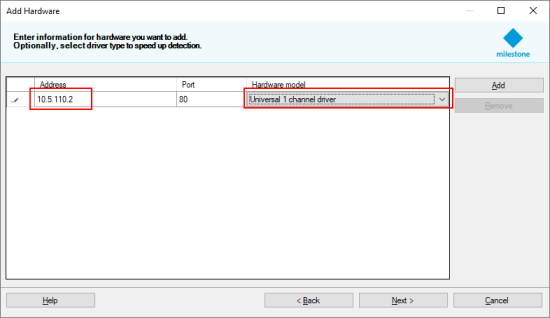
Enter the IP address or the hostname of the device and for Hardware model manually select the Universal driver. The port on this step matters only if HTTP streaming or HTTP JPEG snapshot modes will be used. If RTSP or SRTP streaming is used the port specified here is not used in the driver.
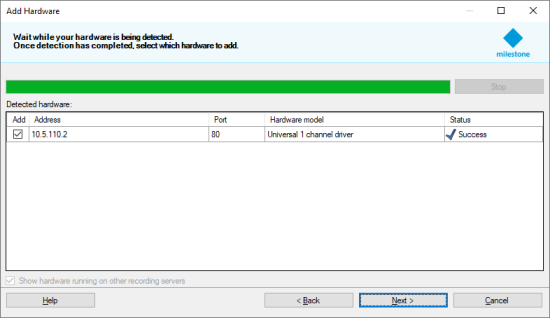
You should see success on the next two steps. At this point no communication is done with the device.
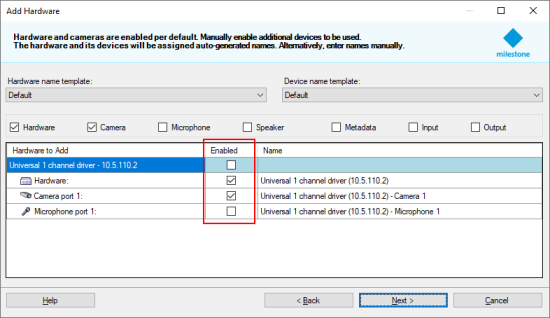
At the final two steps select whether you want to have video and/or audio and add them to groups.
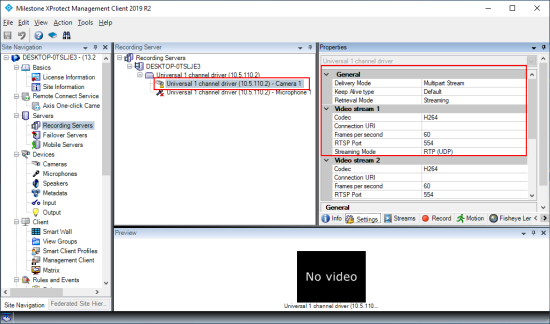
After finishing the wizard you will see the device in the Recording Server’s list. You will probably see a black screen for video and an error specifying lost connection. This is normal as the driver is not yet fully configured. You need to configure the parameters of the stream in the properties section of the video/audio channel.