Retrieval Jobs
When a retrieval job is created, it will display the progress in the notification area in the XProtect Smart Client in the same way that export jobs are shown.
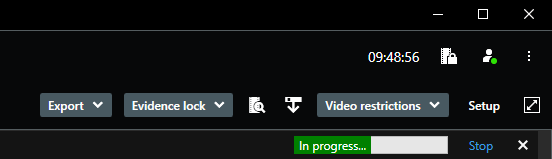
To remove the notification for the job, click the  button. This will not cancel the retrieval job, but just remove it from the notification area. To stop an ongoing retrieval job, click the ‘stop’ button.
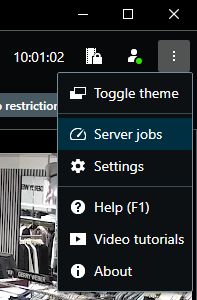
A complete overview of all retrieval jobs, pending, in progress, stopped or completed, can be seen in the ‘Server Jobs’ dialog. The ‘Server Jobs’ dialog is opened from the ‘Settings and more’ menu.
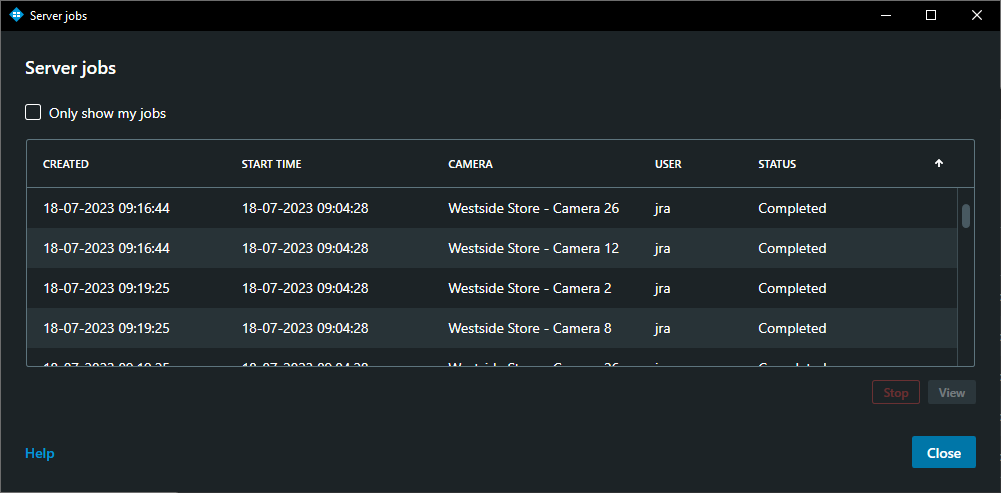
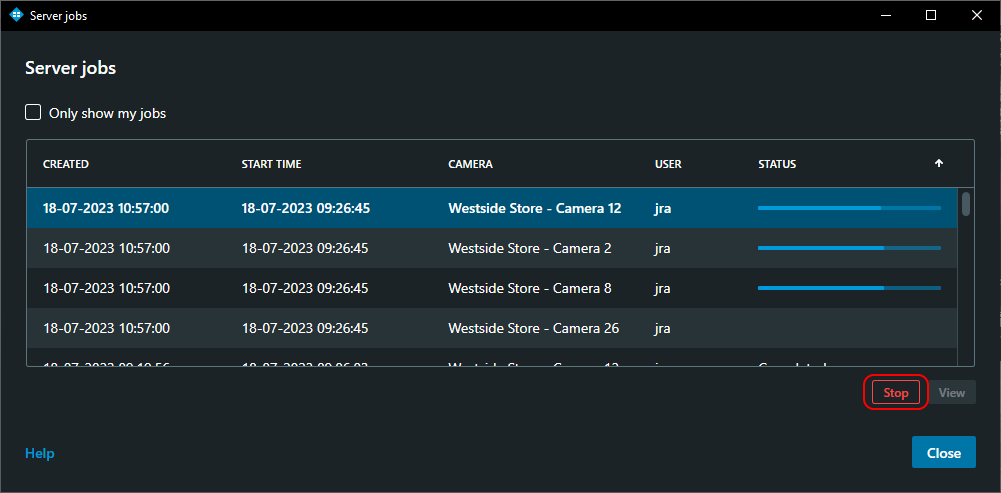
If necessary, the ongoing or pending retrieval jobs can be cancelled by clicking on the ‘Stop’ button.
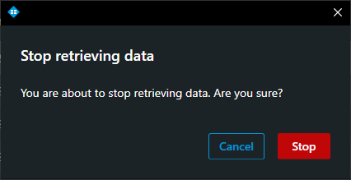
Users will be prompted to confirm that the retrieval should be stopped.
Note
If an ongoing retrieval job is stopped, the recordings that already have been retrieved will not be deleted from the media database.
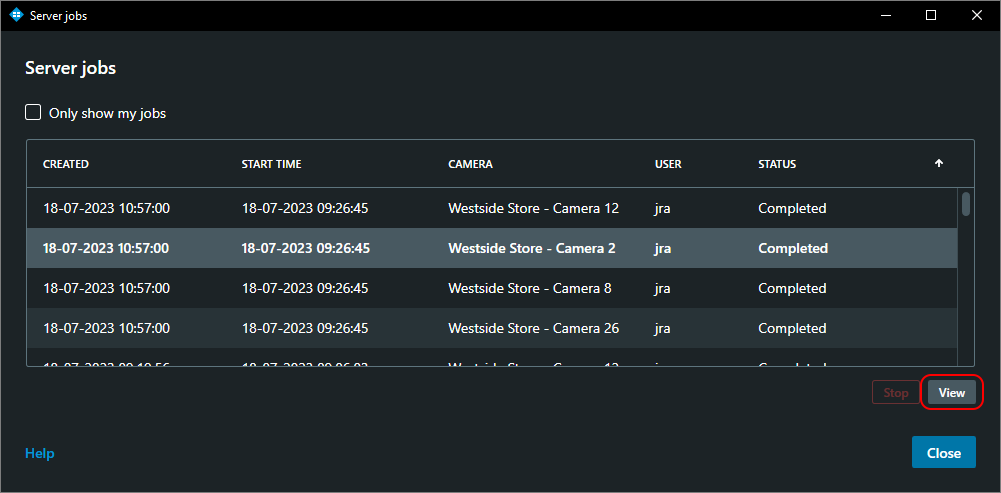
If the user wants to view the retrieved recordings, this can be done by clicking the ‘View’ button.
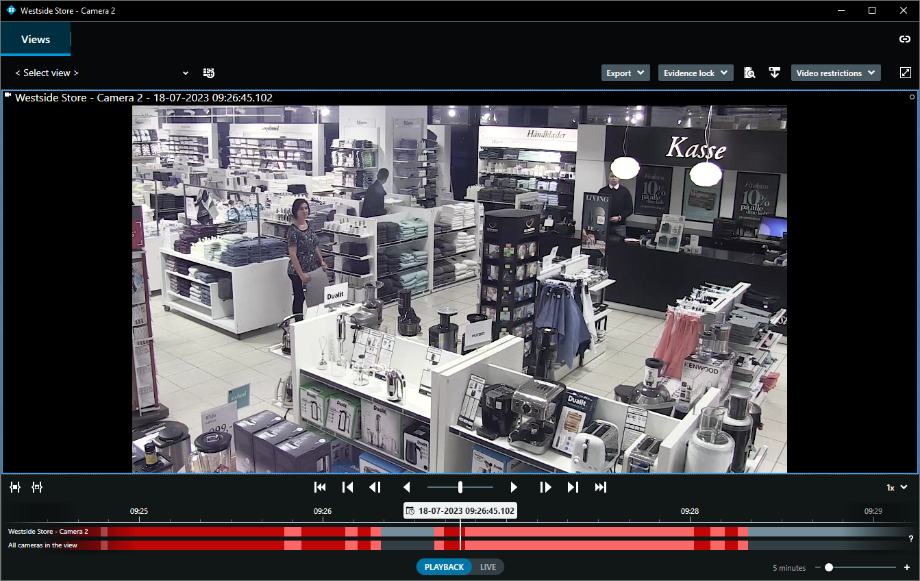
Once clicked, a floating playback window will open showing the camera at the beginning of the retrieved period. The user can now play back the recordings easily or export them for other purposes.