BriefCam Data Protection White Paper
Disclaimer
THIS WHITEPAPER WAS PREPARED FOR INFORMATION PURPOSES ONLY AND SHOULD NOT BE CONSTRUED OR RELIED UPON AS LEGAL OR OTHER ADVICE. YOU SHOULD SEEK LEGAL COUNSELING TO DETERMINE YOUR ORGANIZATION'S COMPLIANCE WITH THE GDPR AND YOUR ABILITY TO USE THE BRIEFCAM SOFTWARE IN YOUR JURISDICTION. NO OPINION OF ANY KIND IS INTENDED OR SHOULD BE INFERRED WITH RESPECT TO YOUR ORGANIZATION'S COMPLIANCE WITH THE GDPR AS WELL AS TO THE COLLECTING AND/OR PROCESSING OF PERSONAL INFORMATION ON INDIVIDUALS WHILE USING THE BRIEFCAM SOFTWARE. THE SCOPE, MANNER AND LEGAL BASIS UNDER WHICH YOU USE THE SOFTWARE AND COLLECT AND/OR PROCESS PERSONAL INFORMATION ON INDIVIDUALS THROUGH THE BRIEFCAM SOFTWARE IS AT YOUR SOLE DISCRETION AND UNDER YOUR OWN RISK. BRIEFCAM WILL NOT HAVE NOR DOES IT ACCEPT ANY RESPONSIBILITIES OR LIABILITIES FOR ITS USERS' USE OF THE BRIEFCAM SOFTWARE AND/OR COMPLIANCE WITH ANY APPLICABLE LAW. NO ASSURANCE CAN BE GIVEN THAT EXISTING LAWS WILL NOT BE CHANGED OR INTERPRETED DIFFERENTLY OR ADVERSELY.
Introduction
On May 25, 2018, the European Union (EU) instated the General Data Protection Regulation (GDPR), which are a set of new rules and regulations directed at protecting the rights of individuals regarding the collection, storage and processing of personal information in the European Economic Area.
BriefCam, the company, does not store personal information on individuals or vehicles either by itself or through its users. However, you, the user, are collecting and/or processing personal information on individuals and vehicles and store such personal information at your site on one or more servers that include the BriefCam product, according to your own settings and preferences.
BriefCam's software is a GDPR-friendly product that includes tools that can help you in your compliance efforts with the GDPR.
Note
The Data Protection screen is not available in the Hub of multi-site deployments. To delete data from a multi-site deployment, access the Data Protection tab via each of the sites.
Data Manager Group
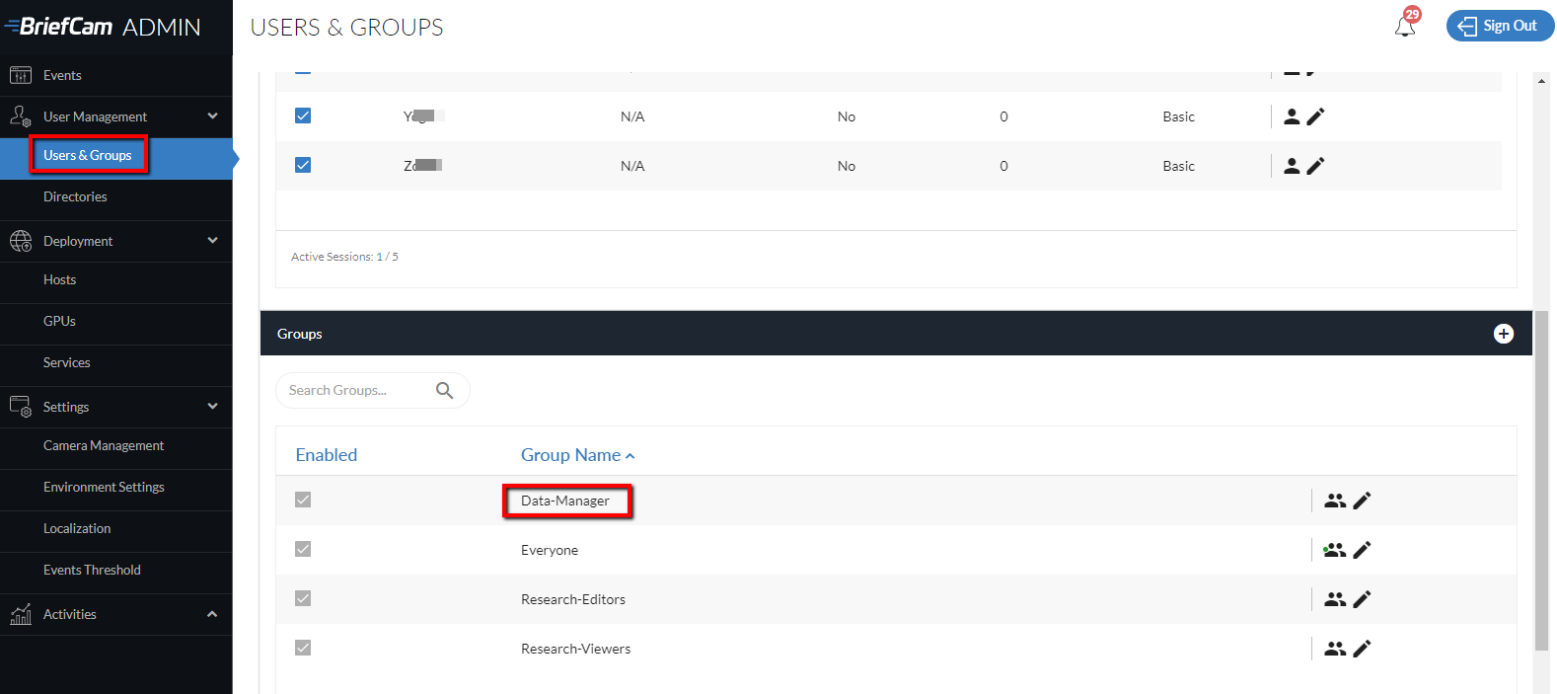
In BriefCam, if you log in as an administrator and go to the User & Groups section, scroll down to the Groups section and you’ll see that there is a group named Data-Manager. Users that are included in this group will be able to manage the users’ data. It is advisable that your Data Protection Officer (DPO) be part of this group.
Data Protection
In BriefCam, the Data Protection option is enabled for users that were added by the administrator to the Data-Manager group. This option allows data managers to view, export and delete data on individuals and vehicles that are stored in your systems.
Sign in as a Data Manager user and open the Customizations menu.
Click the Data Protection option.
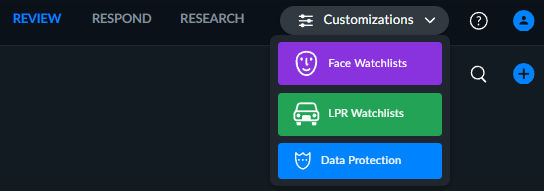
In the Data Protection screen, locate the cameras or files where the person or vehicle exists.
Select the item or items that you want to view, export, or delete. Note that you can narrow down the results using the Select time range filter.
If you are looking for a person, you can narrow down the search by clicking the three-line menu
 and selecting the Show people only option.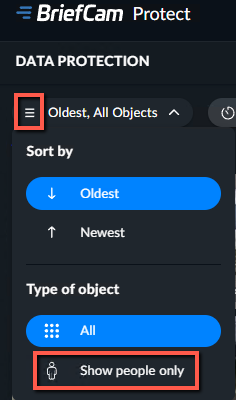
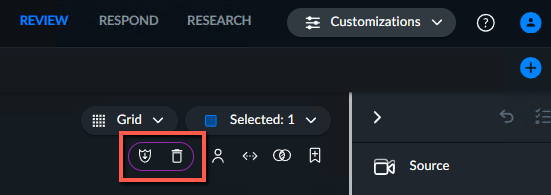
Data managers can also export and delete data from cases.
When the data manager selects objects in a case, there will be two additional icons surrounded in purple for exporting and deleting.
Accessing Data
If an individual asks for access to their personal information, a data manager can download the items and send them as a report by clicking the download button.

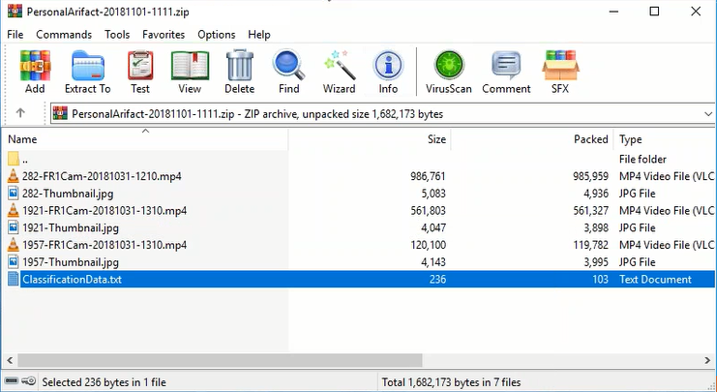
BriefCam creates a zip file that includes the close-up clips (mp4 file), thumbnail (jpg file) and a text file with the metadata of the vehicle’s or individual’s personal information (the individual’s classification, such as gender, as determined by BriefCam’s algorithm).
Deleting Data
If an individual asks that their personal information be deleted, BriefCam's software enables this to be done by a data manager.
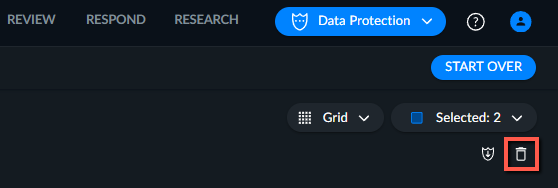
The data manager accomplishes this by marking the items to be deleted and clicking the delete icon.
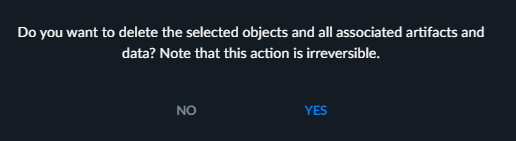
In this screen, the data manager clicks Yes.
Here is a list of the items that are deleted:
Object metadata (times, classification, color, speed, size, etc.)
Object internal binary artifacts (path, bounding boxes, masks, etc.)
Object visual artifacts – thumbnails and movie clips
Bookmark data (if there were bookmarks, based on this object) – metadata and thumbnail
Original video – either uploaded file or footage, fetched from VMS – the minimum required to cover the selected object (depends on the granularity of the actual files). However, it’s quite possible that the original video of other objects will also be deleted and in some cases even the entire original video. In that case, the video will no longer be available for other investigation purposes of other people or vehicles.
Note that the objects are immediately removed from the database and will be removed from the memory cache after the object has not been in use for one hour. If you need the removal from the cache to be immediate, contact your system administrator. This can be changed using the ShardPassivationInMinutes environment setting.
Automatically Deleting Information
You can set up BriefCam’s software to automatically delete personal information that is stored on your database after a certain period of time.
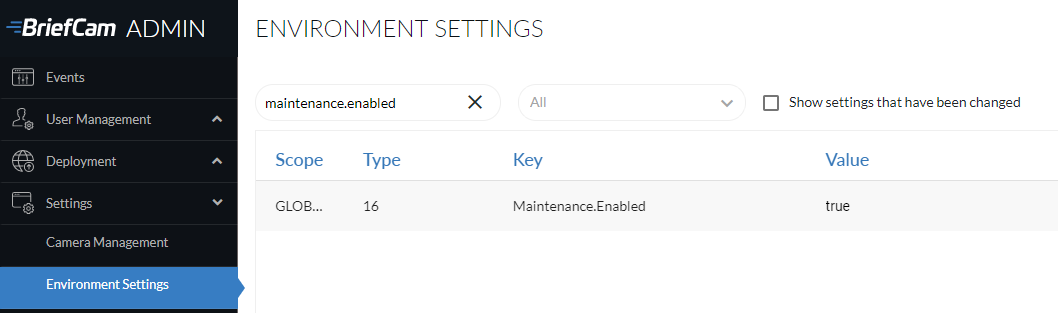
By default, BriefCam’s software automatically runs a maintenance process that deletes information and data. This function is set in the Maintenance.Enabled setting in the Environment Settings screen.
The table below provides details about the various time-frames that the maintenance function is run and where you can change the default values in the Environment Settings screen.
Module | Default Occurrence | VSServer Setting |
REVIEW | Every 30 days | Maintenance.CaseRetentionDays |
REVIEW | Every 30 days | Maintenance.VideoArchiveExpirationDays |
RESEARCH | Every 30 days | Maintenance.BIAssetsRetentionDays |
RESEARCH | Every 3 days | Maintenance.BITaskRetentionDays |
RESPOND | Every 7 days | Maintenance.LiveRetentionDays |
Disabling Face Recognition and License Plate Recognition
The administrator can disable the Face Recognition feature and License Plate Recognition feature in BriefCam.