Hanwha Techwin Integration
Integration Summary
VMS Partner | Product | Version | Last Tested BriefCam Version | Integration Level | H.265 Support |
Hanwha Techwin | Wisenet WAVE | 5.0.0.36410 | 2023 M1 | Real time alerts integration (L2a) | Yes |
Installation and Configuration
Setting Up a Wisenet WAVE User
You need to create a Wisenet WAVE user that you will use when setting up the integration between BriefCam and Wisenet WAVE (in the Setting Up BriefCam to Integrate with Wisenet WAVE section below).
Log into the Wisenet WAVE client as an admin user.
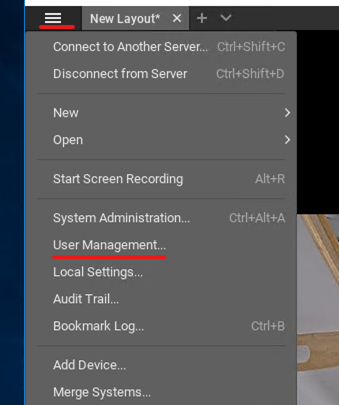
Navigate to the User Management panel.
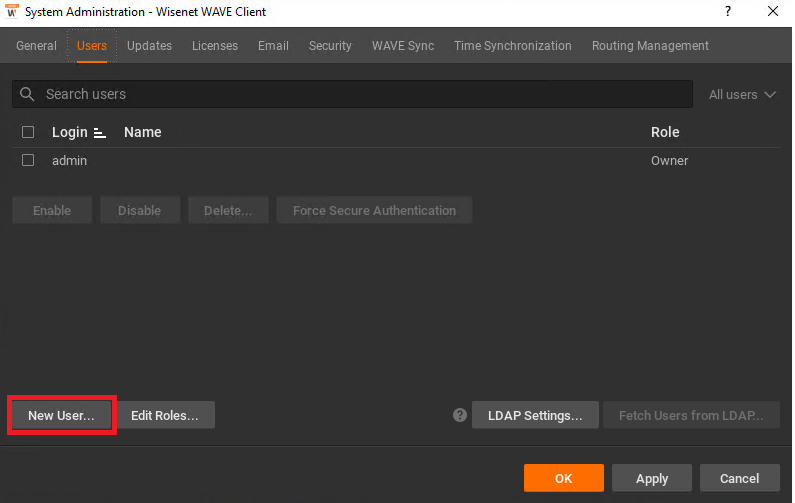
On the bottom left of the screen, click the New User… button.
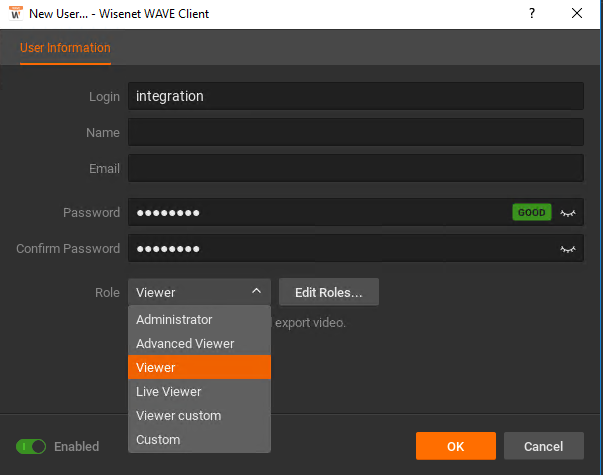
Fill in the Name, Email, and Password fields.
In the Role dropdown menu, select Viewer, Advanced Viewer, or any custom role that has the necessary permissions. It is recommended not to use the Live Viewer role, because this role only has permissions for camera livestreams, and not for video fetching.
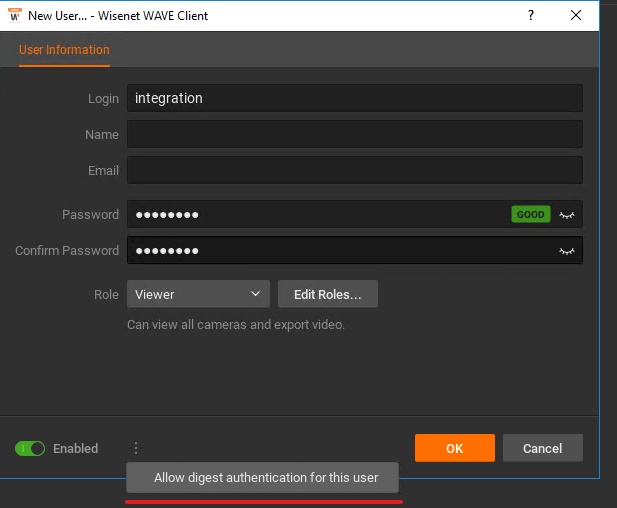
Enable digest authentication for the newly created user as follows:
In the bottom left of the New User… panel, next to the Enabled toggle button, click on the three vertical dots.
Click on the Allow digest authentication for this user pop-up message.
Set the user password again (can be the same as before):
Setting Up BriefCam to Integrate with Wisenet WAVE
Install BriefCam’s Wisenet WAVE plugin.
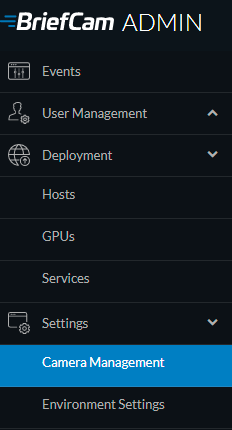
In the BriefCam Administrator Console, open the Settings section and click Camera Management.
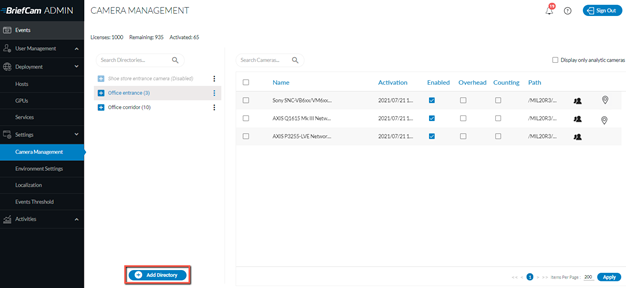
Click the Add Directory button.
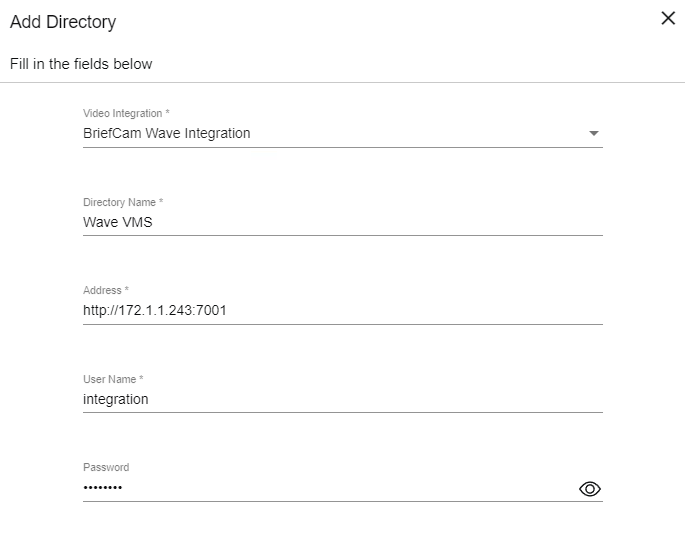
The Add Directory dialog will open.
From the Video Integration field, select BriefCam Wave Integration.
In the Address field, enter the directory address in the following format: http://<vms_ip_or_host>:7001, for example: http://172.1.1.243:7001.
In the User Name and Password fields, enter the credentials you defined in the Setting Up a Wisenet WAVE User section above.
Sending Alerts and Video Fetching
To enable the sending of alerts from BriefCam to Wisenet WAVE:
Open the
BriefCam.WaveIntegration.inifile, which by default is located at:C:\Program Files\BriefCam\BriefCam Server\plugins.Change the value of the
SendAlertsparameter to true and remove the semicolon ( ;).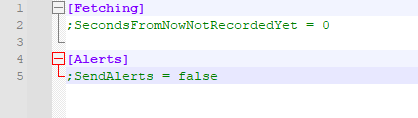
This file also includes the SecondsFromNowNotRecordedYet parameter. This setting is for video fetching. It is the number of seconds before the current time to consider that recording is not yet available for export. For example, if the current time is 10:00 AM and the setting value is 1800, any export requests for video after 09:30 AM will fail because the plugin considers that the video recording is not yet available.