The BOOKMARKS Tab
You can add a bookmark by one of the following methods:
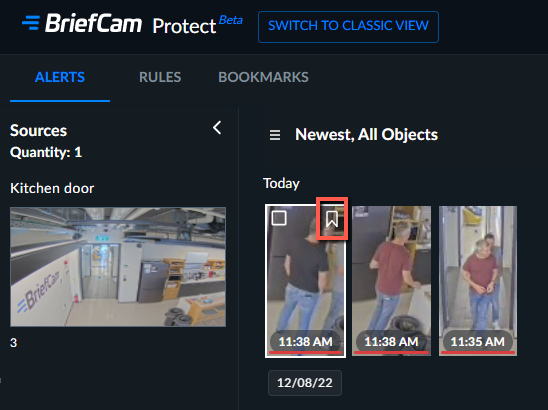
Hovering over the thumbnail and clicking the bookmark icon.
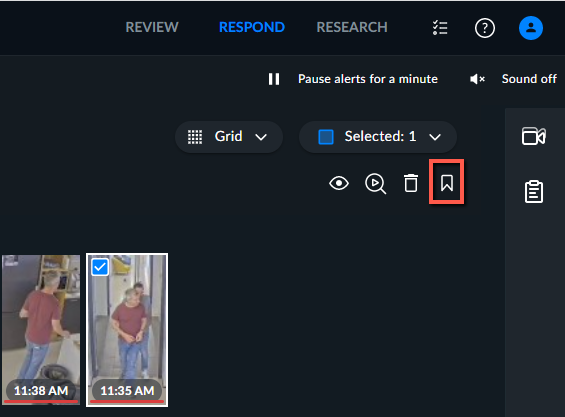
Selecting the alert and clicking the bookmark icon.
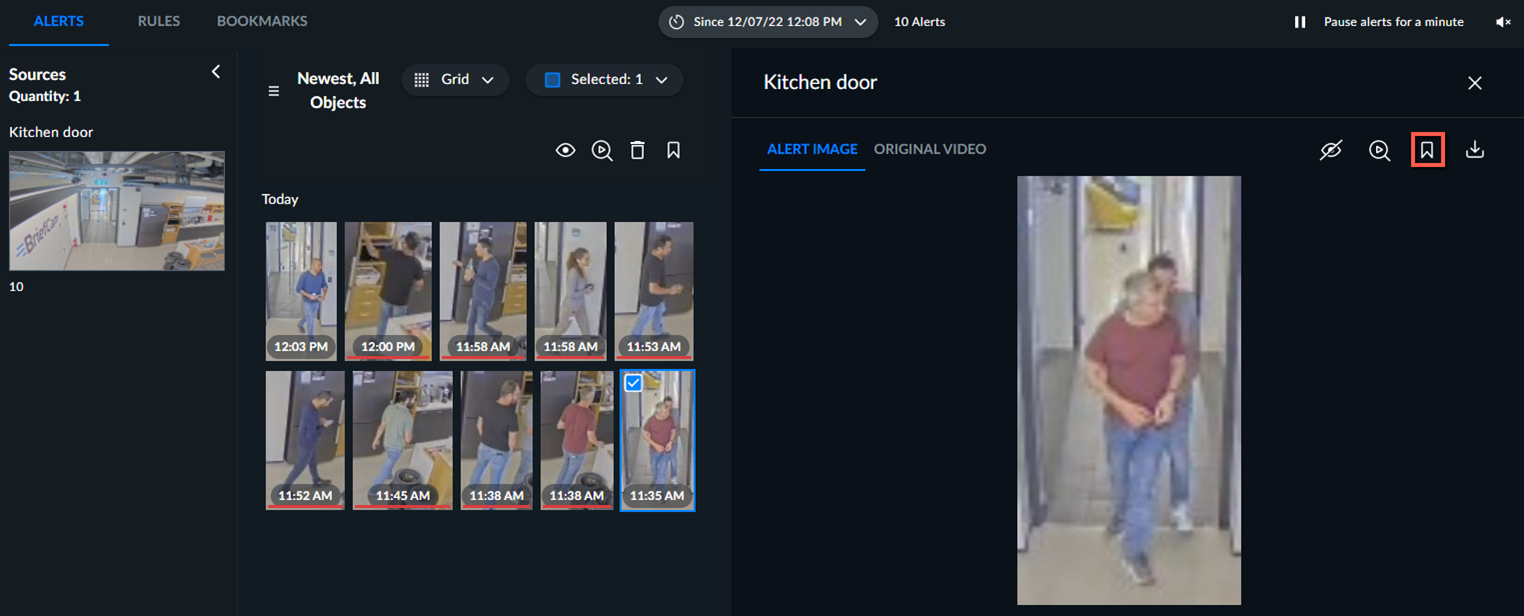
Playing an alert and clicking the bookmark icon.
Once you add a bookmark, you can click again on the bookmark icon and select a color for the bookmark.
Any alert that you bookmarked will appear in the BOOKMARKS tab.
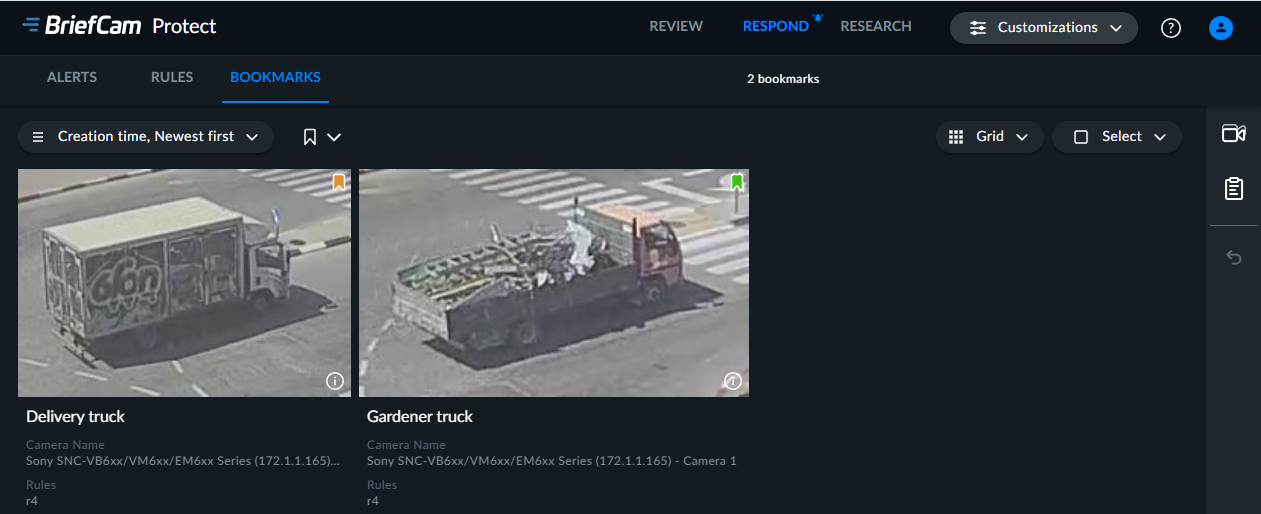
You can filter the alerts by sources or rules using the options in the right-hand pane.
Hovering over any bookmark will reveal a white checkbox for selecting the bookmark.
You can delete or edit bookmarks by selecting one or more bookmarks for deletion and clicking the delete or edit icon ( ) in the top right-hand corner of the Report tab.