Source Groups
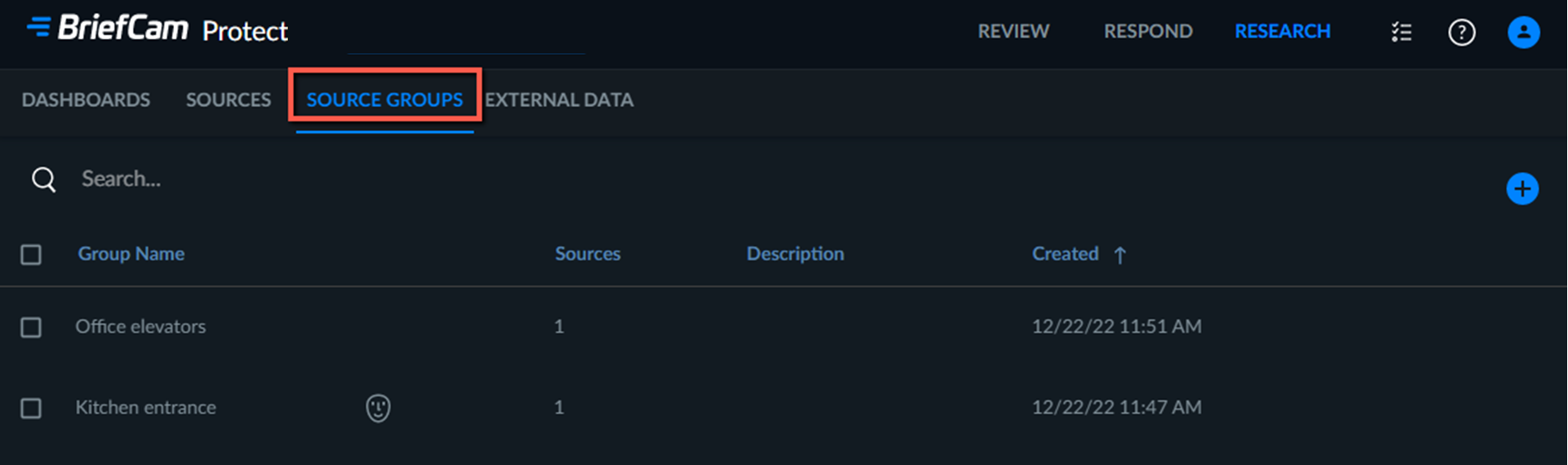
The Source Groups tab lets you create groups of sources to be used for face matching and other grouping needs within the dashboards, such as grouping all the cameras on the 1st floor or all ATM cameras.
Creating/Editing a Source Group
To create or edit a source group:
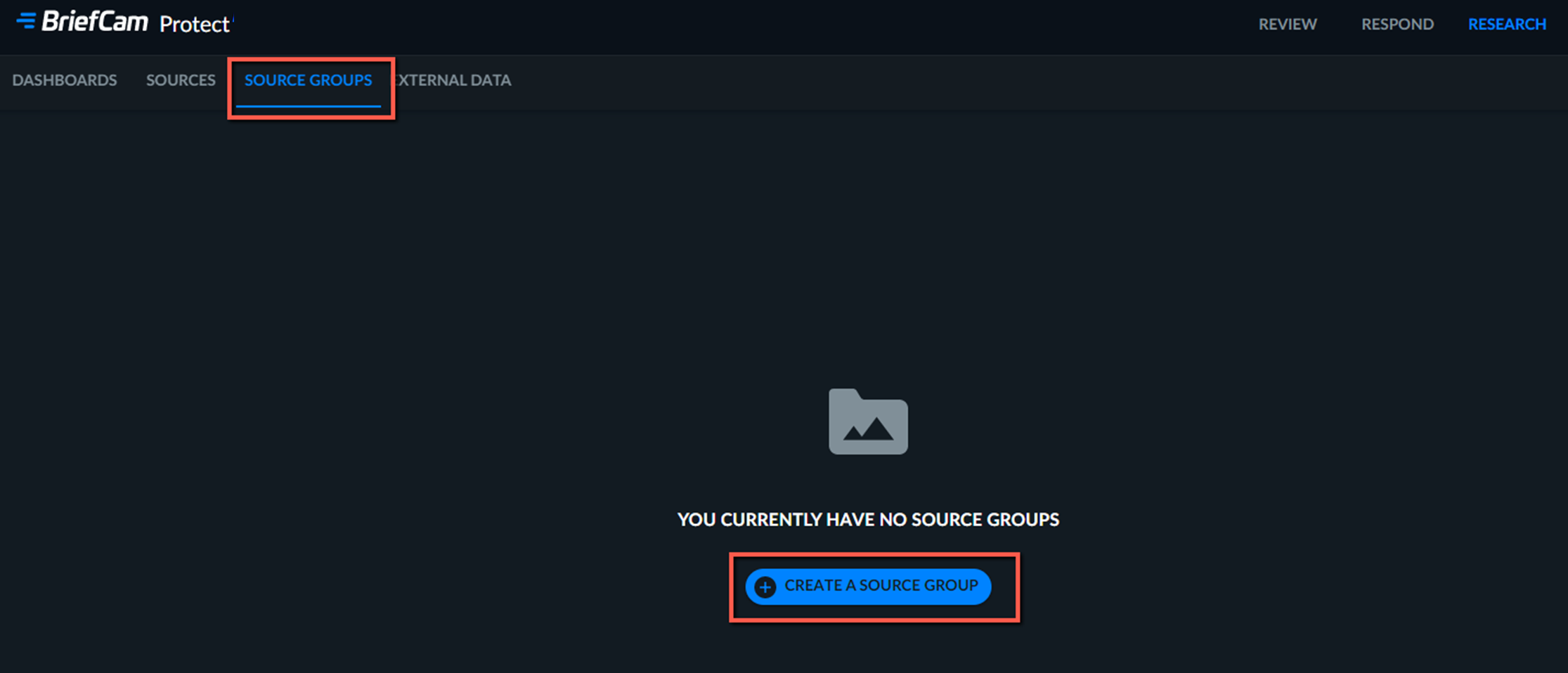
From the SOURCE GROUPS tab, click the CREATE A SOURCE GROUP button.
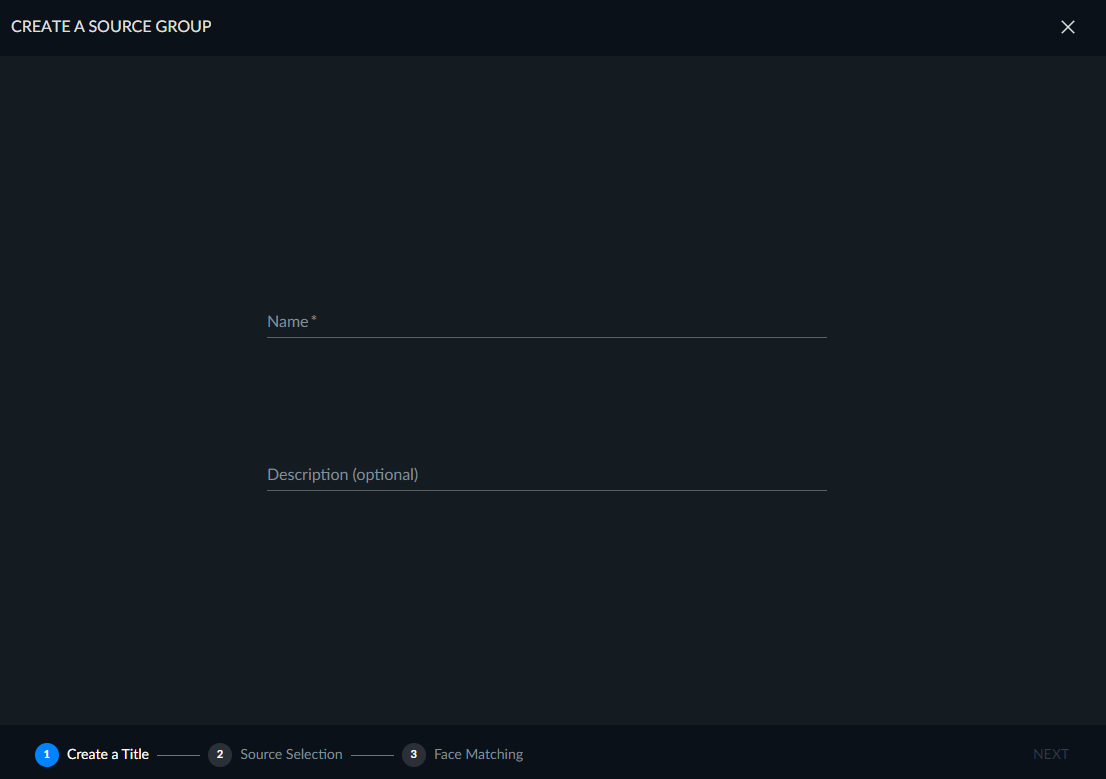
Name the source and click NEXT. The source name must be unique.
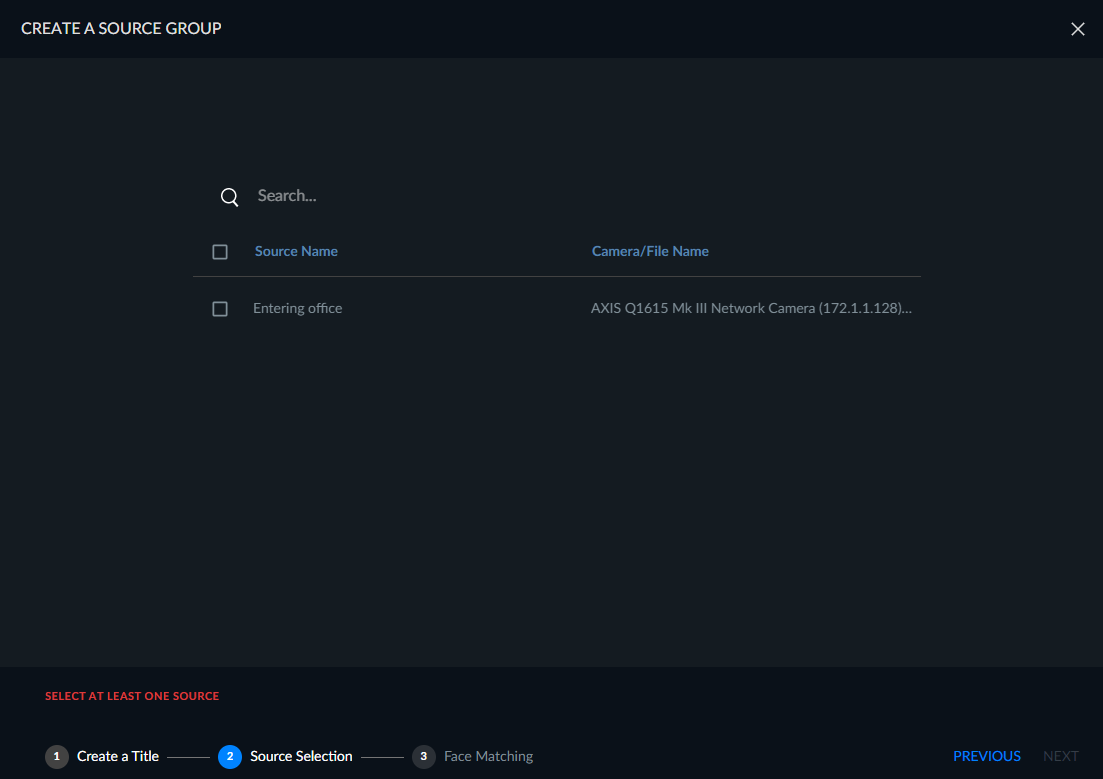
Select the sources (either camera or file) to add to the group and click NEXT. Note that the same camera can be linked to more than one group.
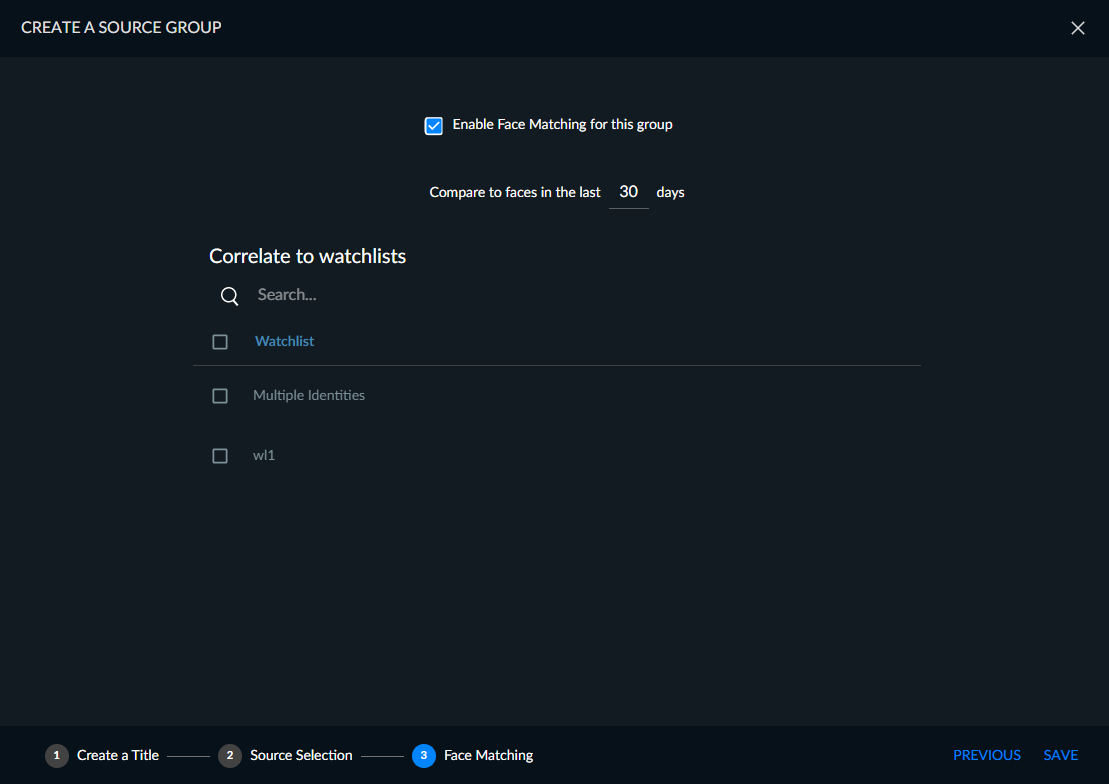
Select whether to enable face matching for the group. Note that enabling face matching is available for groups with no more than 50 sources.
Note
The Face Recognition feature can be disabled by the administrator.
If you check the Enable Face Matching for this group checkbox, set the number of days to compare the faces. It is recommended to set this value to 3 days or less for each group. Increasing the number of days increases the amount of resources needed and decreases the accuracy. Note that the allowed number must be lower or equal to the RESEARCH maintenance settings set by your administrator.
Note
The Enable Face Matching works for sources that are cameras (not files), when the scheduling of the cameras is Continuous, Daily, or Weekly (not One Time).
In this screen, select relevant watchlists to correlate the faces to (if needed), such as Employees. Setting whether to search for people included or excluded in the watchlists will be done within the dashboards. This screen displays the watchlists that you have permissions to use.
Click SAVE.
Note
If you add a RESEARCH source (from a camera) to a source group, the face matching will only start from the time that the source was added to the group.
If you add a RESEARCH source from a case to a source group, the face matching will start from the time that the source was added to the REVIEW module.
Note that you can right-click to access action icons including copying the text in the table.
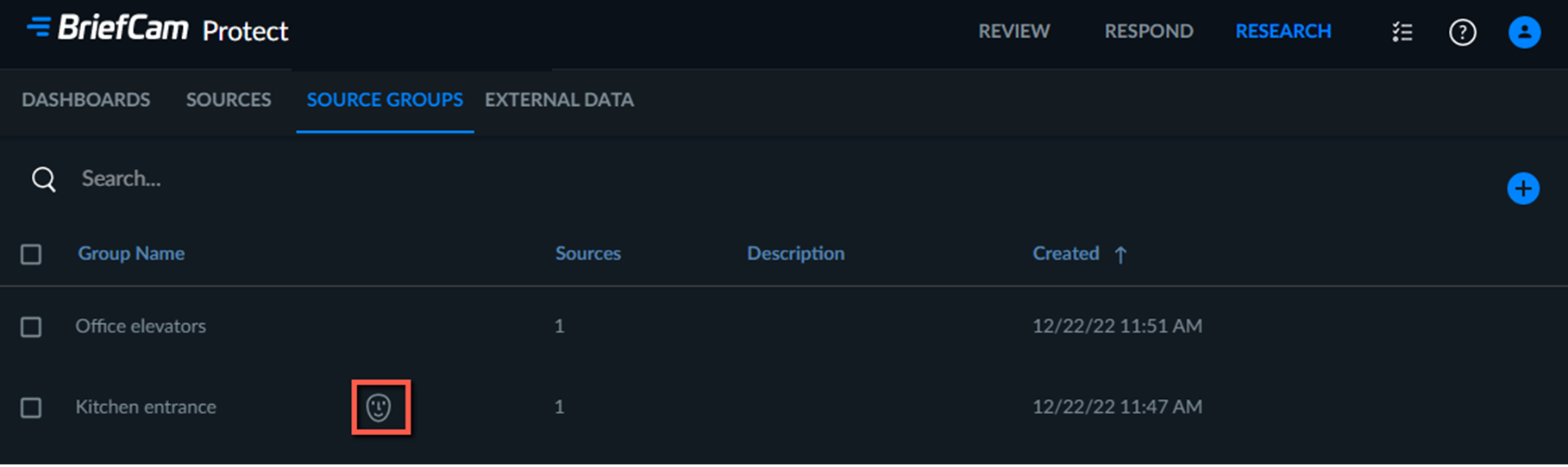
If you select to enable face matching, in the SOURCE GROUPS tab, the face icon ( ) will be displayed next to the group name.
Source Group Permissions
User belonging to the Research-Editors group can view and edit Source Groups (created by other users and themselves).
User belonging to the Research Viewers group can edit the Source Groups for groups that they created and view the Source Group for groups created by other users.
The system administrator can add users to groups.