Sign in to the BriefCam Web Client
Supported Browsers
The browsers that are currently supported are:
Google Chrome v. 77.* and above
Microsoft Edge v. 80 and above
Signing In
In the web browser address bar, enter the internet address of the BriefCam server that you received from your system administrator (example: http://[server name or IP address]/app or https://[[server name or IP address]/app) and press Enter.
Tip
It is recommended to only open one instance of the BriefCam client at a time. Switching between instances may cause UI problems.
You will then be presented with the BriefCam sign in page.
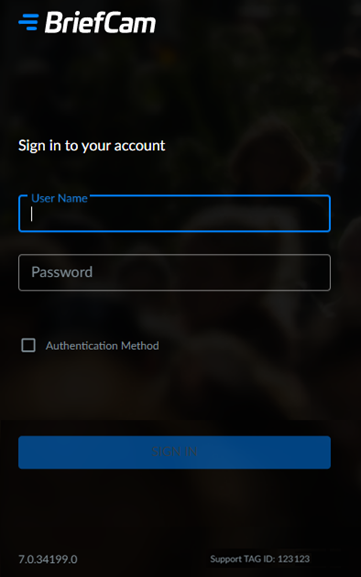
In the User Name and Password fields, enter the login information that you received from your system administrator.
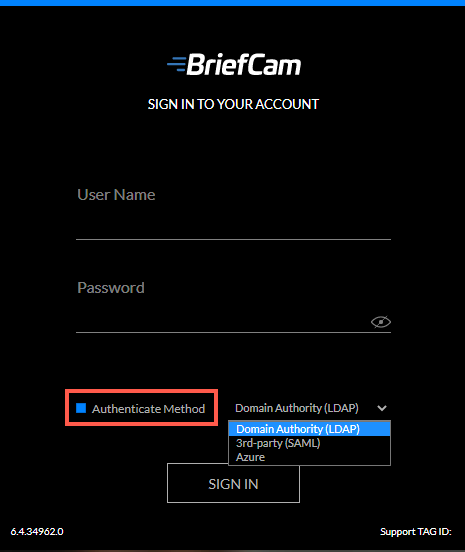
If you want to sign in with an authenticated method, select the Authentication Method checkbox and select Domain Authority (LDAP), 3rd-party (SAML) or Azure and then click Sign In. Note that this first needs to be configured by the administrator. In addition, the administrator can limit the client login to a single method and that will be reflected on the sign-in page.
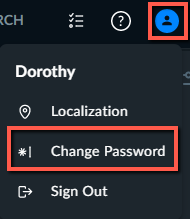
Once signed in, you can change your password by clicking on the Account user ( ) icon and clicking Change Password. Note that non-English characters are not supported for passwords.
The TAG ID at the bottom of the screen is a number for support purposes. When contacting a Support representative, you may be asked to provide this number.
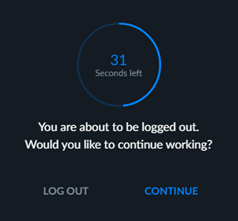
Users are automatically logged out if no activity is detected for 20 minutes (per machine). This allows organizations to do away with licenses being used when the user is no longer using the application and then it is not available for other users. The administrator can change this default.
However, while the RESPOND module's ALERTS tab is open, there is no session timeout.
Before the automatic log out, the following message is displayed.