Toggle Bounding Boxes
Bounding boxes (see the blue markings in the image below) enable you to keep track of all events shown in the VIDEO SYNOPSIS® and to ensure that no event is overlooked.
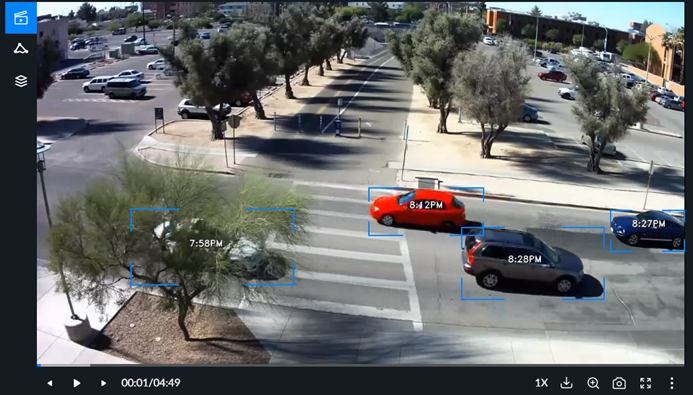
The Toggle Bounding Box option ( ) can be used to turn the bounding box display on or off (the default is on).
The Toggle Bounding Box option is available in the More video options menu ( ).
).
When the box is on, the bounding boxes will be shown when a VIDEO SYNOPSIS® is paused and when playing back the original video (only for the selected object).
Caution
Bounding boxes when playing an original video are not supported for all VMSs. This is because certain VMSs do not provide accurate timestamps.