Searching for License Plates
The selected license plates will now appear in the License Plate Recognition filter, ready to be searched by.
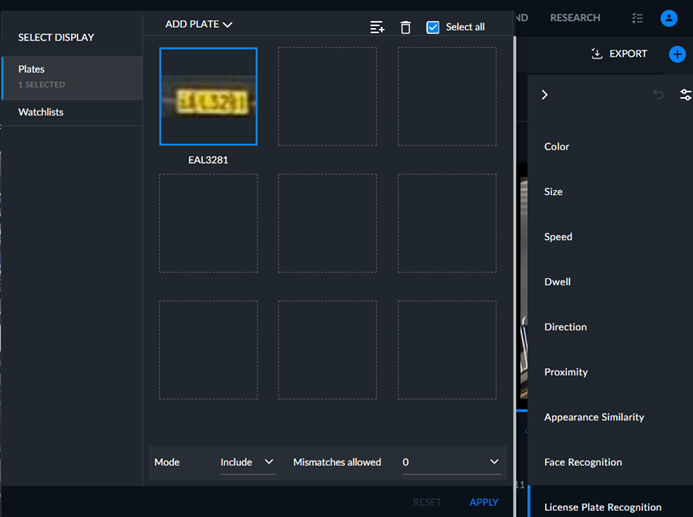
You can select all the objects on the current page by checking the Select All checkbox and you can then delete them all. You can also use Shift+Click to select multiple consecutive objects.
In the Plates tab, select the license plates you want to search for and click APPLY to filter all objects by these license plates.
You can hover over an individual license plate appearing in the License Plate Recognition filter and click its delete (trash can) button to remove it from the filter or select the Select all option and then click the delete button to remove all the license plates displayed on the current page.
In the Mode field, you can select between two operation modes:
Include (default) – Find all objects that have a recognizable license plate that matches one or more license plates within the selected watchlists.
Exclude – Find all objects that have a recognizable license plate that matches none of the license plates within the selected watchlists.
In the Mismatches allowed drop-down list, you can select whether to allow between 0 and 8 mismatched characters in the search. For example, if you select 0, only perfect matches will be displayed. If you select 2, plates with 2 mismatches or less will be displayed.
A blue line will appear around an object that is being used in the filter.
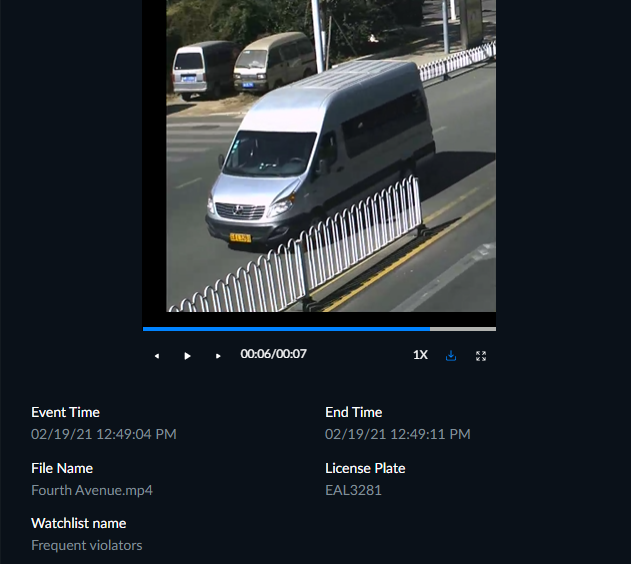
Under the image and closeup clip are details about the event and license plate. This helps the operator verify that the automatic license plate transcription was correct.
Watchlists are set in the Customizations section.
See also: (from the BriefCam License Plate Recognition white paper)