Data Protection
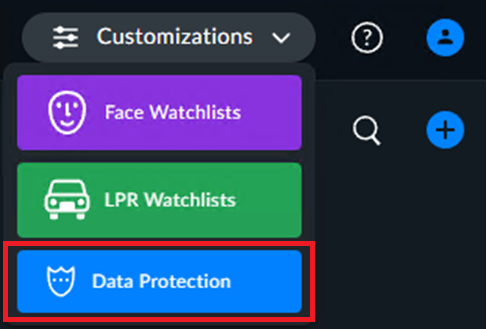
The Data Protection section is enabled for users that were added by the administrator to the Data-Manager group. This section allows data managers to view, export, and delete data on individuals that are stored in your systems.
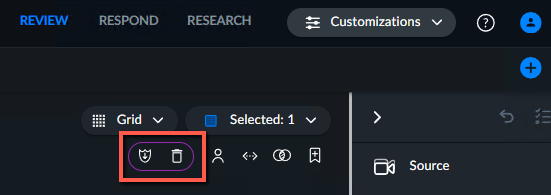
In addition, data managers can export and delete data from cases. When the data manager selects objects in a case, there are two additional icons surrounded in purple for exporting and deleting.
In the Data Protection section, locate the cameras or files where the person or vehicle exists. Select the item or items that you want to view, export, or delete.
Note that you can narrow down the results using the Select time range filter.
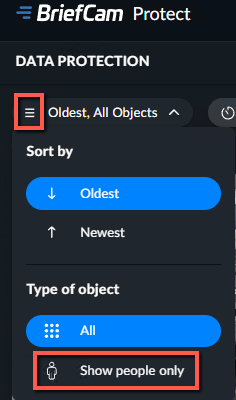
To narrow down your search to people only, click the three-line menu  and select the Show people only option.
A data manager can download the items and send them as a report by clicking the download icon ( ).
).

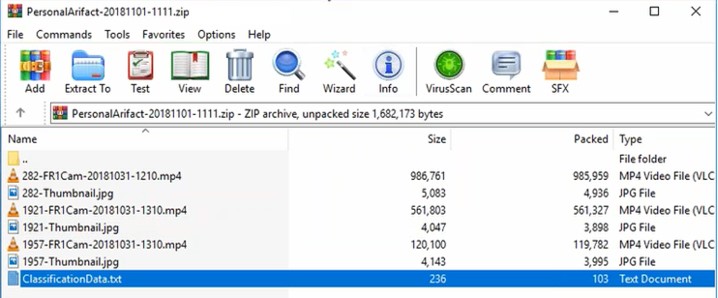
BriefCam creates a zip file that includes the close-up clips (mp4 file), thumbnail (jpg file) and a text file with the metadata of the individual's personal information (the individual’s classification, such as gender, as determined by BriefCam’s algorithm).
To delete data, mark the items to delete and click the delete icon.
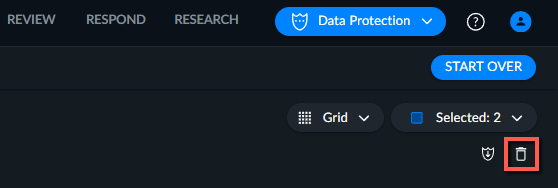
Here is a list of the items that are deleted:
Object metadata (times, classification, color, speed, size, etc.)
Object internal binary artifacts (path, bounding boxes, masks, etc.)
Object visual artifacts – thumbnails and movie clips
Bookmark data (if there were bookmarks, based on this object) – metadata and thumbnail
Original video – either uploaded file or footage, fetched from VMS – the minimum required to cover the selected object (depends on the granularity of the actual files). However, it’s quite possible that the original video of other objects will also be deleted and in some cases even the entire original video. In that case, the video will no longer be available for other investigative purposes of other people.
Note that the objects are immediately removed from the database and will be removed from the memory cache after the object has not been in use for one hour. If you need the removal from the cache to be immediate, contact your system administrator.If you need the removal from the cache to be immediate, it can be changed using the ShardPassivationInMinutes environment setting.