Case Management
At the core of the REVIEW solution is powerful case management. The CASES interface – the main page that loads in your browser when you log into the module’s Web interface – presents an integrated view of all video assets of an investigation within a single container.
Additional case management features include the ability to bookmark objects of interest and summarize case findings (including relevant exhibits) in reports for truly streamlined investigation workflows.
The first thing you’ll be presented with when logging into BriefCam in your browser is the REVIEW solution's CASES overview page, which displays cases under your ownership (that is, cases created in your user account and cases that were shared with you).
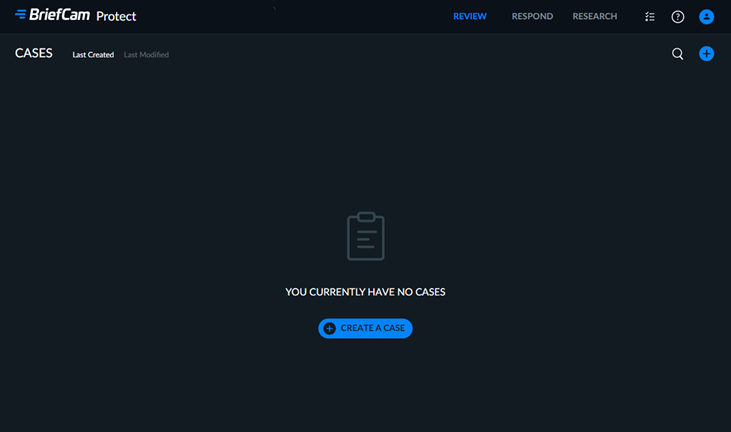
In the top right-hand corner of the page, you can:
Search for cases via the magnifying glass icon. The case name and case description are searched. Note that searching for the backslash character (\) is not supported.
Create new cases by clicking CREATE A CASE.
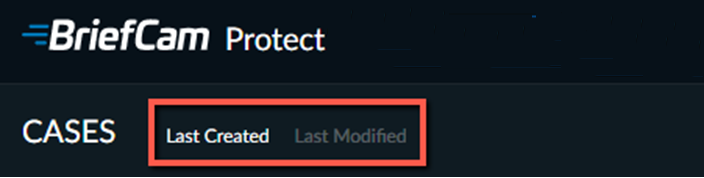
Sort the cases by using the Last Created and Last Modified options in the top right-hand corner.
Let’s zoom in on a sample case.
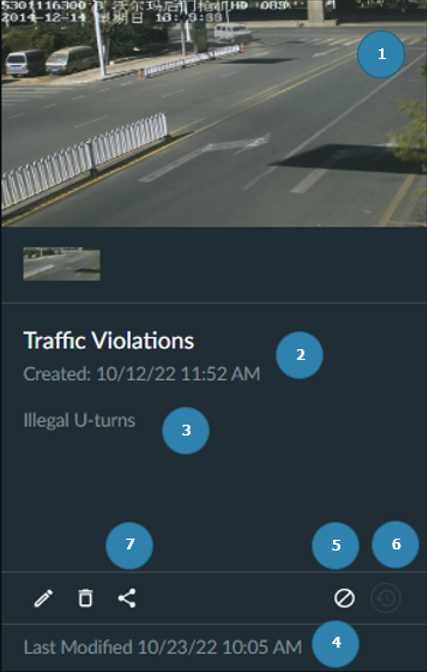
Each of the cases displayed on the CASES page features the following:
A large cover image taken from the most recent synopsis added to the case, with smaller thumbnails of additional synopses directly below the cover image.
The case’s name and the date and time of creation.
A case description (optional).
The date and time of the case’s last modification.
Indicates that the case was excluded from being automatically deleted during maintenance. You can click on it to edit the behavior.
Indicates that the case includes scheduled sources.
Indicates the case collaboration status. You can click on it to change the status.
At the top of the screen, you will see when the case will be deleted. For example, in the image below, it says: This case will be deleted in 1 day.
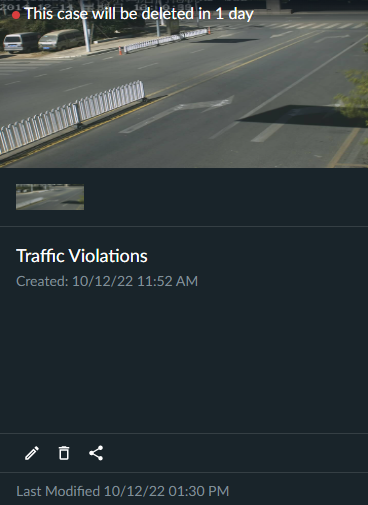
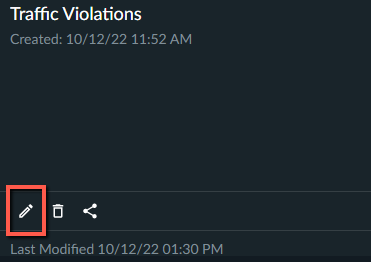
To prevent a case from being deleted during maintenance, when items are automatically deleted, click the edit icon.
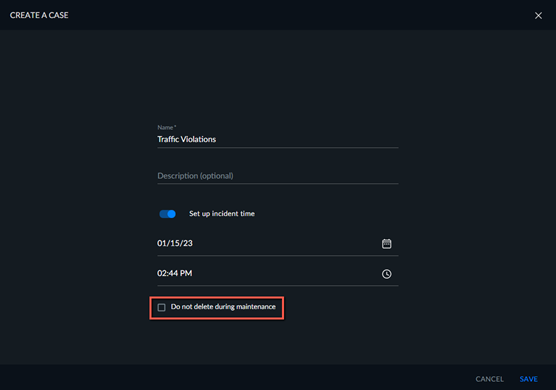
In the edit screen, check the Do not delete during maintenance checkbox.
Note
For details about the maintenance process, see the Maintenance and Data Retention section in the BriefCam Administrator Guide.