High Security Environment with Customized Policy Settings
If your environment is configured for high security with customized policy settings, note the following:
Many of the installers use PowerShell. To enable PowerShell to run, the Local Computer’s Script execution policy must be enabled or not configured (and not disabled). In addition, the maximum restriction of the policy that can be used is RemoteSigned.
To turn on script execution follow these steps:
From the Windows Start menu, type
policyand select Edit group policy.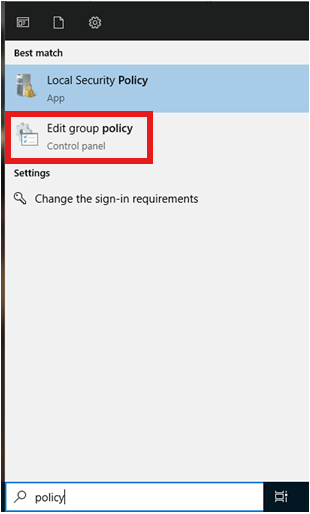
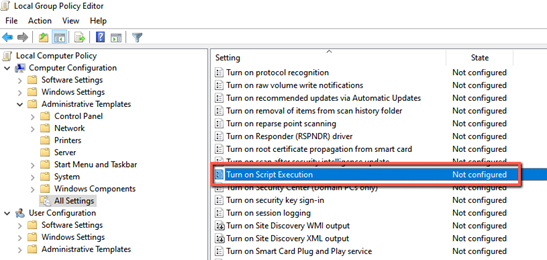
The Local Group Policy Editor will open.
Navigate to Computer Configuration -> Administrative Templates -> All Settings.
Check that the Turn on Script Execution policy is set to Not configured or Enabled.
To check that the maximum restriction of the execution policy is RemoteSigned:
From PowerShell, run the following command:
Get-ExecutionPolicy.
To set the execution policy to RemoteSigned:
From PowerShell, run the following command:
Set-ExecutionPolicy RemoteSigned