Antivirus
It is required to disable antivirus scans from all BriefCam’s folders as specified below.
The BriefCam engine extracts many objects from raw video and keeps them in small video files and image files. (In high activity scenes, there may be thousands of files created in each hour and even more.)
When the antivirus is enabled and every created file is automatically scanned, this leads to poor performance and poor hardware utilization.
To disable the antivirus:
In each one of BriefCam’s servers, disable the antivirus scan for these paths (if they exist, which depends on the installed components).
Installation Folder | Default Installation Path |
Server |
|
Web services |
|
PostgreSQL |
|
| |
Redis |
|
Qlik | |
MongoDB |
|
RabbitMQ |
|
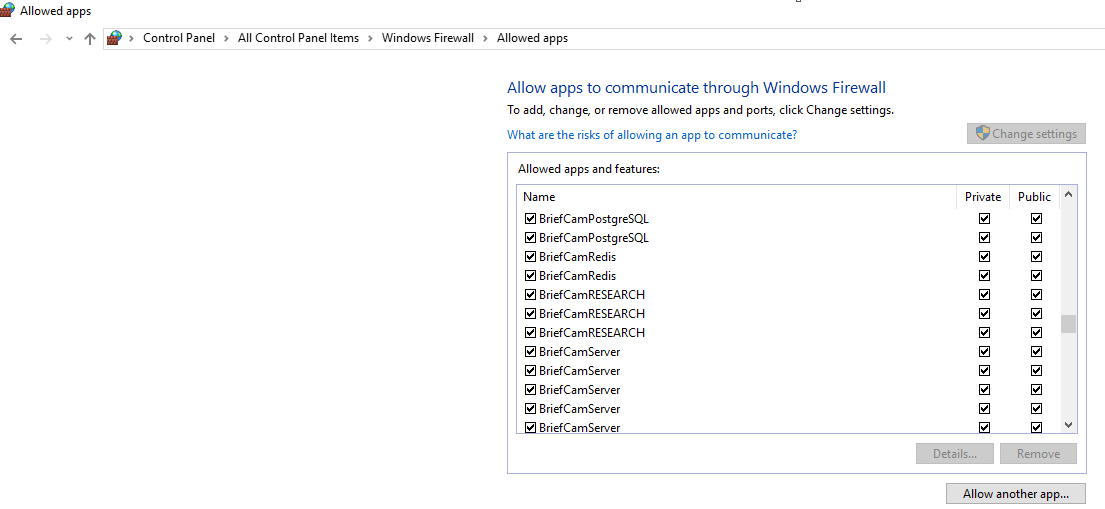
It is also recommended to add all the executable files located in the installation folders (from the table above) to the Allowed Programs/Apps.
In the storage server, disable the antivirus scan for these paths (if they exist):
Installation Folder | Default Installation Path |
|
|
|
|
Known Issues When the Antivirus Is Active
Timeouts and errors when writing or reading from the storage occur when the antivirus becomes a bottleneck when trying to access the storage.
Slow server response time due to heavy use of memory, CPU, and disk utilized by the antivirus processes.
Files that include low-level operations (such as HASP Dlls and NVIDIA drivers) may be put in quarantine and disrupt the normal functioning of BriefCam.