Microsoft Active Directory Integration
To manage Active Directory-based BriefCam users and groups, click and expand User Management on the left-hand menu of the BriefCam Administrator Console. Then, click Directories.
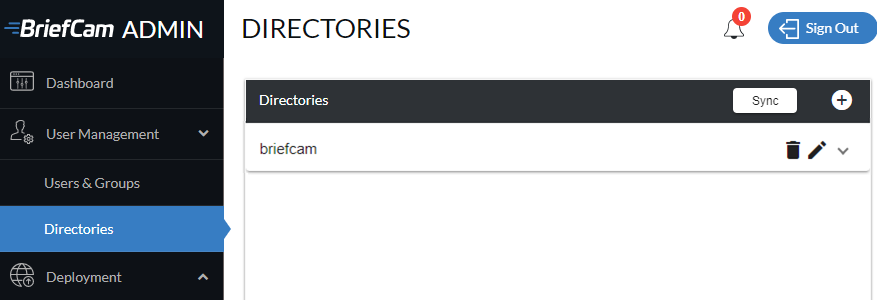
Connecting to an Active Directory
Before adding Active Directory users and groups to BriefCam, you must connect to an Active Directory.
To connect to a new Active Directory:
Click the + symbol to the right of the Directories section.

In the Add Directory screen, enter the Active Directory’s URL as well as the user name and password for the Active Directory administrator and click Test Connection.
When you see the Succeeded message, click Add.

Sync the directories, by clicking the Sync button.
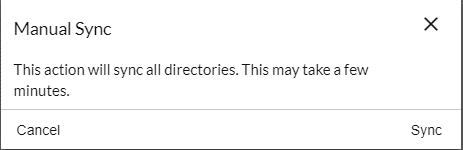
When the message below appears, click Sync to proceed.
Adding Active Directory BriefCam Users
To add a new Active Directory user:
Click the arrow that appears at the top right of the screen.

Click the + symbol to the right of the Directory Users section.

In the dialog that appears, search for the users that you want and then click the + symbol next to each of them to activate them in BriefCam. User activations are instantaneous.
When you are finished adding users, click Close.
Newly added Active Directory users will be listed under the Users section and will be able to log into BriefCam pending a manual sync.
Adding Active Directory BriefCam Groups
To add a new Active Directory user group:
Click the + symbol to the right of the Directory Groups section.

In the dialog that appears, search for the groups that you want and then click the + symbol next to each of them to activate them in BriefCam. Group addition and activation of Active Directory group (and subgroup) users are instantaneous.
When you are finished adding groups, click Close.
If an Active Directory group contains sub-groups, all of the group’s users – and all users of its subgroups, up to an additional three nesting levels down – will be added to and activated in BriefCam.
All groups added will be listed under the Directories page’s Groups section and, pending a manual sync (see the Syncing Active Directory Users and Groups below), alongside standard BriefCamgroups under the Users & Groups page’s Groups sections.
At the top of the Directories page, click the Sync button.
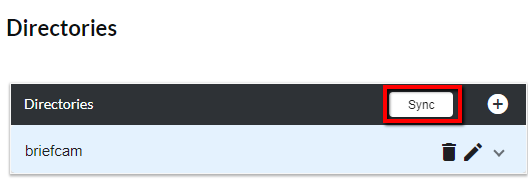
When the message below appears, click Sync to proceed.
Following successful manual syncing, all Active Directory users and groups will be listed under the Users and Groups sections of the BriefCam Administrator Console’s Users & Groups page and will be reflected in the number of active user licenses remaining.
Syncing Active Directory Users and Groups
User and group additions and removals do not sync automatically with BriefCam. However, this can be configured in the following settings:
UserDirectorySyncronization.Enabled
UserDirectorySyncronization.PeriodMinutes
UserDirectorySyncronization.MaxGroupNestingLevel