Maintenance and Data Retention
To maintain fully optimized BriefCam system performance, BriefCam automatically clears the processed data periodically, including data from both the database and the storage.
Note that the Maintenance service can be installed on multiple instances to distribute the load between several machines.
To turn off the automatic maintenance, set the Maintenance.Enabled environment setting to false. However, this is not recommended since the storage will fill up.
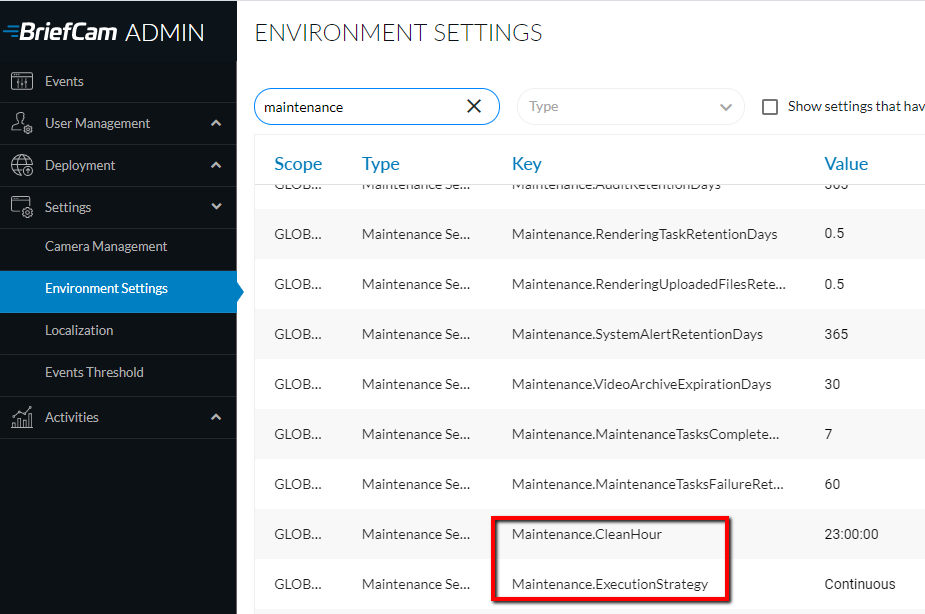
In the Maintenance.ExecutionStrategy environment setting, the maintenance can be set to run either Daily or Continuously.
When the setting is set to Continuously (the default), the maintenance runs every hour.
When the setting it set to Daily, the time that it is run is set in the Maintenance.CleanHour environment setting. The value is time based (hh:mm:ss), for example: 23:00:00.
To clear the data proactively, set the Maintenance.CleanHour environment setting to the current hour and set the Maintenance.ExecutionStrategy to Daily and then restart the Maintenance service. The maintenance will then run immediately. It is recommended to then change the settings back to their original value.
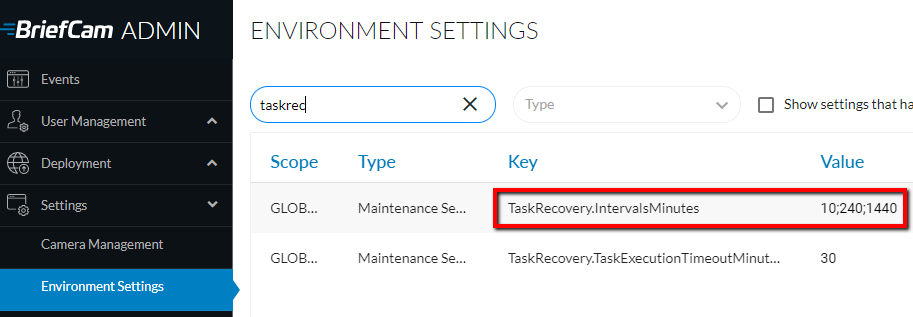
If the maintenance fails to run, the system automatically attempts to recover once the process is up. The attempt to recover will be in a time interval as configured in the TaskRecovery.IntervalsMinutes setting (as shown in the image below). The defaults are 10, 240 and 1440 minutes, meaning that the first recovery attempt will be after 10 minutes, the second after 4 hours and the last attempt will be after 12 hours.
The Maintenance.ServiceInstancesRetentionMinutes environment setting determines how long after going offline the services are deleted from the BriefCam database. The default value is 43,200 minutes (30 days).
The sections below describe additional environment settings that control how the maintenance process works.
REVIEW Module
Note
If there are REVIEW cases that you do not want to be deleted during the automated maintenance, click the edit ( ) icon from the case’s screen and select the Do not delete during maintenance checkbox. These marked cases and their artifacts will not be deleted via the maintenance process even if other cases or alerts use it and are deleted.
The best practice is to set the two settings below (CaseRetentionDays and VideoArchiveExpirationDays) to the same value.
Setting: Maintenance.CaseRetentionDays
Default: 30 days
When the case’s update date is older than 30 days (by default), all data of the case is deleted from the BriefCam database and disk.
Modifications of a case affect the case’s update date, such as editing the case’s name or description, sharing the case, adding/deleting videos, editing the video scheduling, editing presets or adding/deleting bookmarks. However, adding a face or license plate to the Case watchlist or editing bookmark details will not affect the case’s update date.
If the same data is being used by other cases, the case will still be removed from the Cases screen and the data will remain on the database and disk.
If the case contains an activated scheduled source, the case will not be deleted. Requests from the scheduled source older than the value in this setting will be deleted, but their bookmarks will only be deleted when the entire case is deleted. If the case also contains a source that is not an activated scheduled source or is a disabled scheduled source, those sources will also not be deleted.
If the case contains only regular sources or disabled scheduled sources, the case will be treated as a regular source, meaning that when the case’s update date is older than 30 days (by default), all data of the case older than 30 days (by default) is deleted from the BriefCam database and disk.
When the REVIEW request is partially based on on-demand processing and partially on live request (because some of the request was already processed for an alert), the artifacts are removed from the REVIEW and RESPOND module according to the maintenance settings. However, the request is completely removed from the infrastructure (including the database) according to the processing date of whichever of the two happened last: on-demand processing or live processing.
Regarding watchlists, an internal watchlist that was created within a case will be deleted once the case is deleted (by maintenance or by the user).
Regarding bookmarks, they will also be deleted once the case is deleted as detailed above.
Setting: Maintenance.VideoArchiveExpirationDays
Default: 30 days
This setting controls how often to delete the video files fetched from the VMS. This setting also affects original video that was fetched in RESPOND alerts, which are not usually brought into BriefCam automatically (just when clicking the alert thumbnail). For example, in the RESPOND module, the original video of each alert is not fetched until the user requests an original video. Once the user requests an original video, BriefCam keeps the original video for immediate access for the number of days specified in this parameter.
Setting: Maintenance.LocalFilesRetentionInHours
Default: 24 hours
This setting controls how often (in hours) temporary rendered files are deleted from the BriefCam database.
The temporary rendered files are located at: ..\BriefCam\ServerData\VideoStreamingGateway\VideoService.
The files saved here are rendered artifacts created by web client user interactions, such as VIDEO SYNOPSIS, original video, and more.
Setting: Maintenance.RenderingUploadedFilesRetentionDays
Default: 0.5 days
This setting controls how often uploaded files are deleted from the BriefCam database.
The uploaded files are located at: ..\BriefCam\ServerData\VideoData\WebUpload.
The files saved here are video files uploaded by the end user via the web client for the purpose of REVIEW processing in Investigator, Investigator for Teams, and Protect configurations.
Setting: clientMaintenanceCaseMessageInDays
Default: 7 days
This setting controls when to start displaying the deletion notice on a case. The value set here is the number of days before the case is set to be deleted by the maintenance process.
Caution
These settings are not applicable for the Hub. It is only relevant for sites and in standalone deployments.
RESPOND Module
Setting:Maintenance.LiveRetentionDays
Default: 7 days
All RESPOND alerts outside the retention range are deleted (even alerts that are bookmarked; however, the bookmark itself will not be deleted). Bookmarks in the RESPOND module are never deleted by the maintenance process.
Alerts for currently running live tasks are deleted if they are outside the retention range.
RESEARCH Module
Setting: Maintenance.BIAssetsRetentionDays
Default: 30 days
This setting controls how often the RESEARCH BI tables (generated from BriefCam metadata ETL) are deleted from the BriefCam storage. This is a backup if Qlik was not able to pull in the data.
Setting: Maintenance.BIVisualLayersRetentionDays
Default: 3650 days
This setting controls how often to delete the Visual Layer files, which are used for the Dashboard tab. This deletes the files from the BriefCam database and from the BriefCam folder where images are saved (C:\BriefCam\ServerData\RenderData).
Setting this to less than 1 day may affect the visual layers.
Setting: Maintenance.BITaskRetentionDays
Default: 3 days
This setting controls how often the metadata and visual assets from RESEARCH processing tasks are deleted from the BriefCam storage. The metadata is all assets/files/records that are being created during the RESEARCH processing (either Continuous or On-demand). This is how long BriefCam saves the data for the BI Rule Engine service.
Setting: RESEARCH.QVDRetentionDays
Default: 30 days
This setting determines the number of days that the detailed tables in deployments with split QVDs is retained.
Setting: RESEARCH.DetailedLoadDays
Default: 30 days (for environments updated from v6.4 or below, the default is 730 days)
This setting controls the data loaded from the RESEARCH app (based on the timestamp field and not the VMS time). This setting impacts the RAM needed for loading the detailed app and reduces the amount of data loaded into the full data model.
The aggregated dashboards are not affected by this setting.
Watchlist Tabs
Caution
This functionality is not applicable for the Hub. It is only relevant for sites and in standalone deployments.
An external watchlist (managed in the Watchlist tabs) is not deleted by the maintenance process. However, as mentioned above, an internal watchlist that was created within a case will be deleted once the case is deleted (by maintenance or by the user).
Maintenance Exclusions
The following items are not deleted during maintenance.
Camera Background Images folder - When you use Test Connection, an image from the camera is saved under the
Camera Background Imagesfolder. Each camera maintains one image, which is updated whenever the connection is retested. This folder and its contents are not affected by maintenance.Bookmarks - Bookmarks created in the RESPOND or REVIEW modules remain in the system even if the original alert or object is deleted. They are only removed when explicitly deleted by the user.
Cases marked Do not delete during maintenance - In the REVIEW module, you can edit a case and select the Do not delete during maintenance check box. These cases and their associated artifacts will persist through maintenance cycles.
QVD Files (RESEARCH Module) - QVD files are not part of the maintenance process and must be deleted manually if required.
Maintenance Monitoring
You can monitor and track the maintenance.
The maintenance is carried out by a separate service called: Maintenance Service and has its own log. In the Event screen, you can see if the service is running.
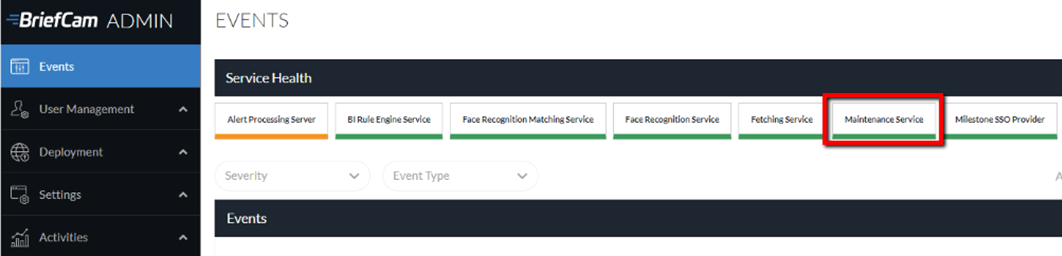
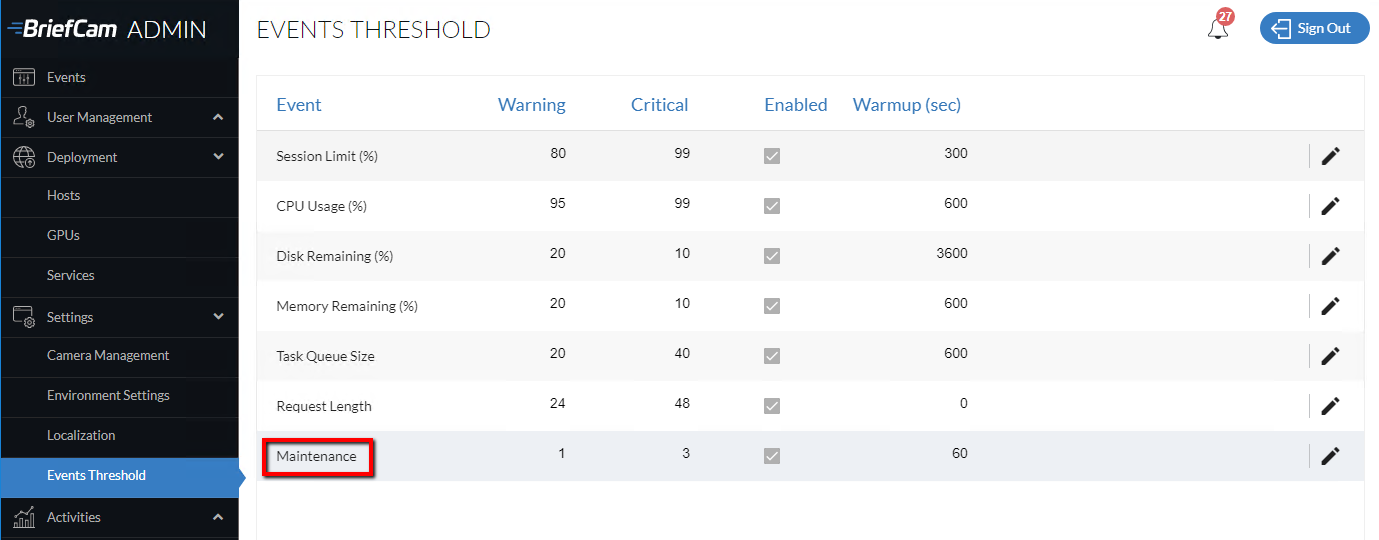
If the maintenance failed, a Maintenance event will appear in the Events screen (above), if the Maintenance events thresholds are reached. By default, if the maintenance failed to run at least one time, a Warning event will appear and if the maintenance failed the last three times, a Critical event will appear.
PostgreSQL Manual Maintenance
Manual maintenance is essential for PostgreSQL databases to prevent performance issues and table bloat. Periodically running VACUUM FULL and REINDEX operations helps maintain database performance and stability. To avoid impacting database availability, schedule these tasks during periods of low usage or planned maintenance windows, ideally every few months or half a year. This ensures smooth and efficient database operation.
For databases with a PostgreSQL_Data folder size of ~200GB, a maintenance window of up to 6 hours is required once every 6 months. On high-activity systems, the maintenance time window and interval will increase accordingly.