Activities Section
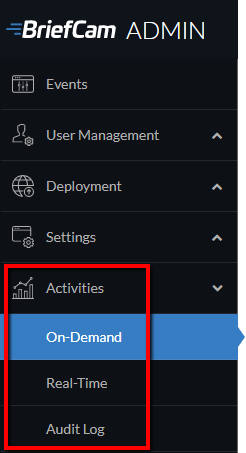
The Activities section (see below) offers a consolidated view of all VIDEO SYNOPSIS generation requests logged on the BriefCam server (both on-demand and real-time) and an audit log of the user activities.
On-Demand Activities
Caution
This functionality is not applicable for the Hub. It is only relevant for sites and in standalone deployments.
In the On-Demand section, there are two sub-sections: On-Demand Requests and On-Demand Tasks.
On-Demand Requests
The information presented for individual synopsis generation activities includes unique ID, source name, user, case ID, start and end times, progress, creation date, processing time, current request status (processing, queued, etc.), and progress. Note that you can also see the case name by hovering over the case ID.
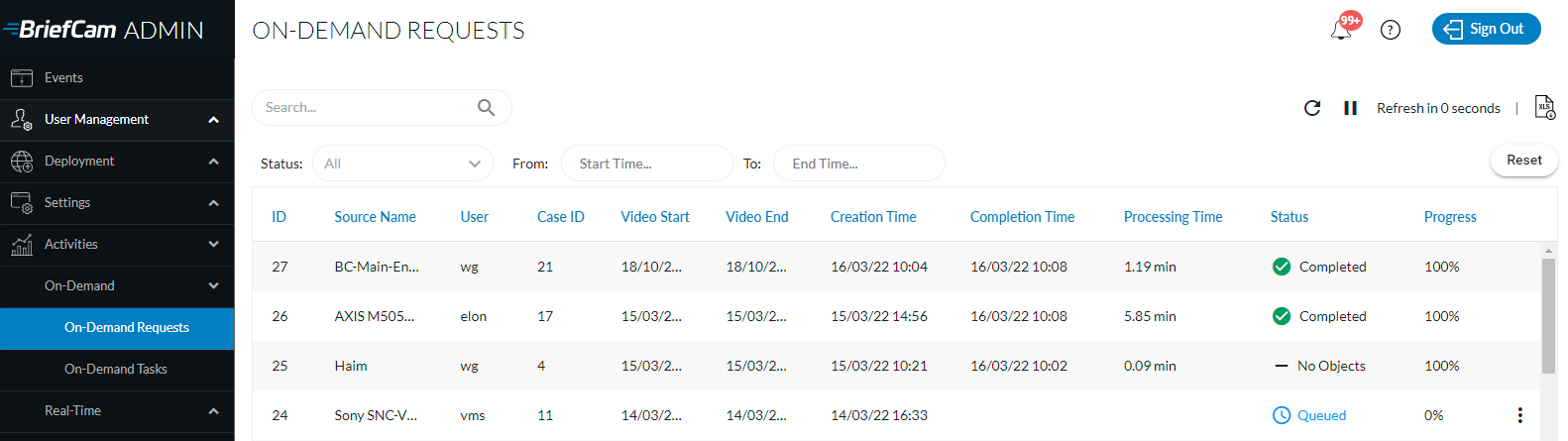
To understand the various time elements here, see the descriptions of the relevant columns below:
Video Start – The Start Time that was selected when adding the source to the case.
Video End – The End Time that was selected when adding the source to the case.
Creation Time – The time when the video source was added to the case.
Completion Time – The completion time of the last processing task that was handled (including completed with error and partial errors).
Processing Time – The time from the Creation Time until the Completion Time. This includes the time that the tasks were in the queue.
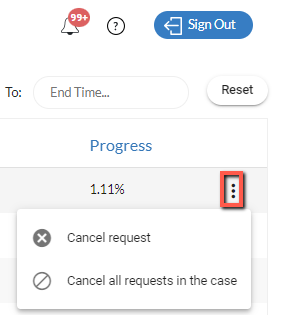
You can click the vertical ellipsis to the right of the Progress column and select to cancel a specific request (Cancel request) or cancel all of the tasks associated with a specific case (Cancel all requests in the case). The processing tasks will then have an error status, which indicates that the video processing was cancelled ahead of time. The end user will have access to the case from the REVIEW module and can see partial processing results of the video that was processed before the cancel action took place.
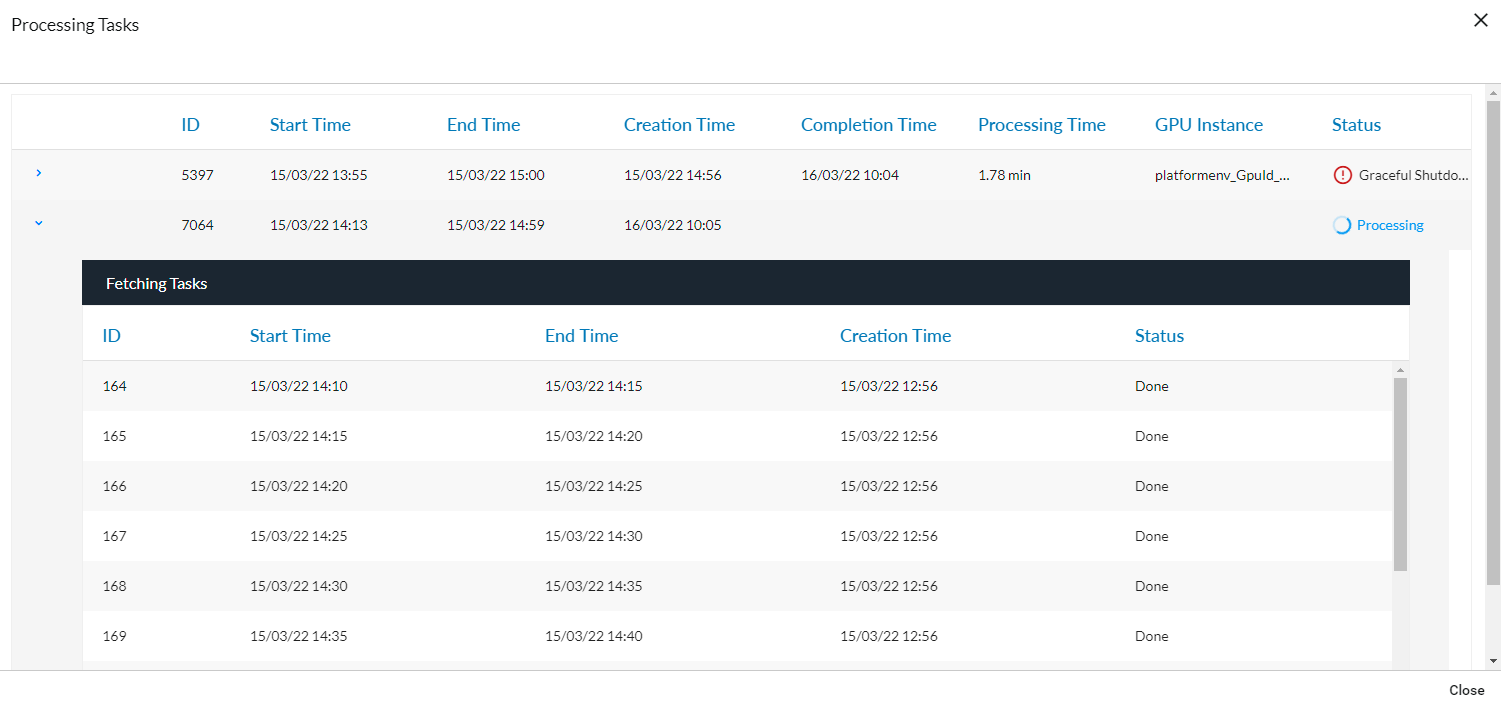
You can click each row to open a screen with details about all processing tasks associated with this synopsis activity and all fetching tasks associated with each processing task (as shown in the image below).
You can then click on one of the processing tasks’ rows to retrieve information about the fetching tasks (if they are available).
From the top of the screen you can:
Download an .xlsx file of the log. This option is available when there is something loaded in the list.
Refresh the list of currently active requests at any time by clicking the Reload (
 ) button. When you click the Reload button, the sorting and filters are maintained.
Set the screen to refresh every 60 seconds by clicking the arrow to the left of the Refresh in 60 seconds option.
Filter by time range and status. You can select multiple statuses by selecting an additional status each time you open the list.
On-Demand Tasks
The On-Demand Tasks screen displays information about the processing tasks.

To understand the various time elements here, see the descriptions of the relevant columns below:
Start Time – The time that BriefCam’s engine started breaking down the video source to chunks.
End Time – The time that BriefCam’s engine finished breaking down the video source to chunks.
Creation Time – The time when the processing task was added to the queue.
Completion Time – The completion time of the processing task (including completed with error and partial errors).
Processing Time – The time from the Creation Time until the Completion Time. This includes the time that the tasks were in the queue.
From the top of the screen, you can:
Refresh the list of currently active tasks at any time by clicking the Reload (
) button. When you click the Reload button, the sorting and filters are maintained.Set the screen to refresh every 60 seconds by clicking the arrow to the left of the Refresh in 60 seconds option.
Filter by status and creation time. You can select multiple statuses by selecting an additional status each time you open the list.
Search by camera name and assigned GPU.
Real-Time Activities
Caution
This functionality is not applicable for the Hub. It is only relevant for sites and in standalone deployments.
In the Real-Time section there are two sub-sections: Real-Time Rules and Real-Time Tasks.
Real-Time Rules
This screen displays the information of all rules from the entire system including real-time rules set in BriefCam’s RESPOND and RESEARCH modules.
Note that:
Continuous RESEARCH rules are not available on this screen.
The rule owner will not get a notification in the client once the rule was disabled/enabled from this screen. The status of the rules will be updated in the BriefCam client’s Rules tab.
The Last Updated column displays the user’s local time (this is stored in the database in UTC format).
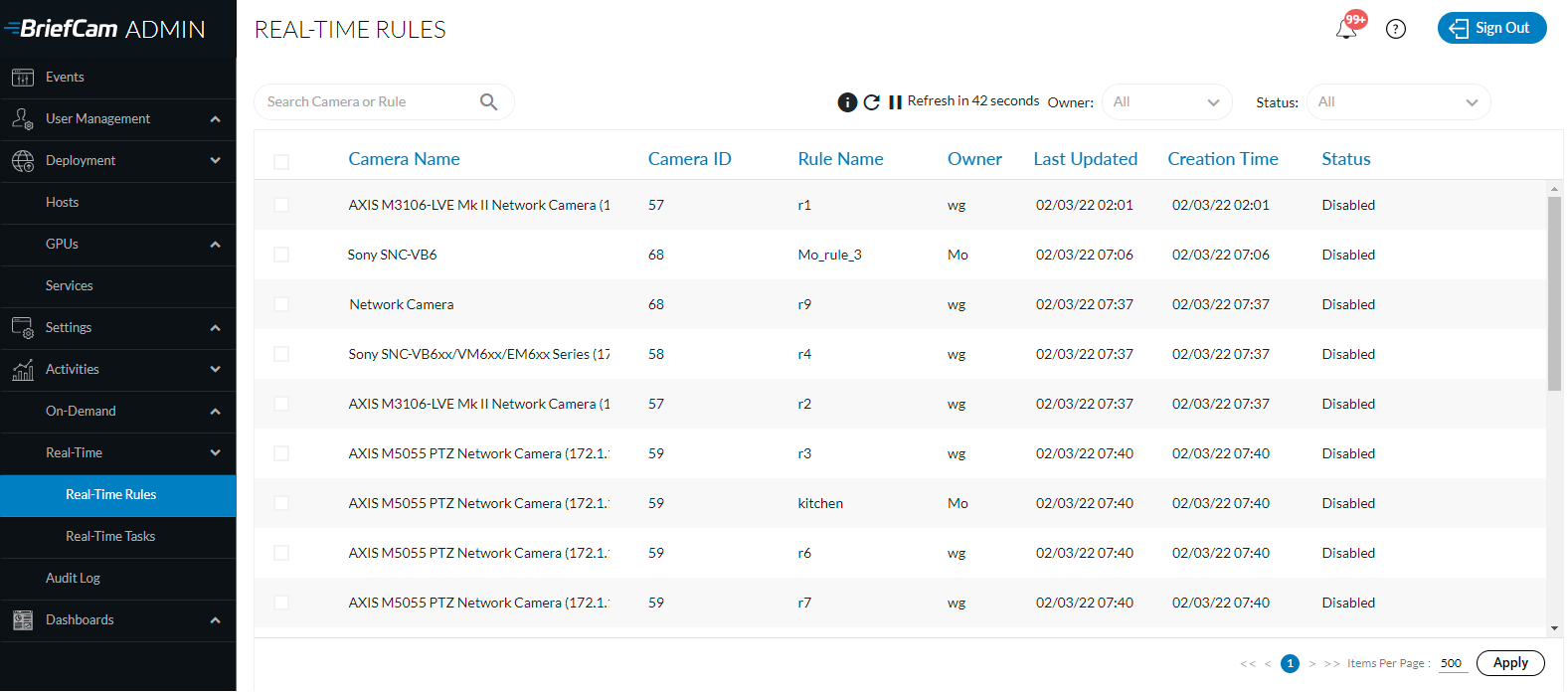
From the top of the screen you can:
Download an .xlsx file of the log.
Refresh the list of currently active activities at any time by clicking the Reload (
) button.Set the screen to refresh every 60 seconds by clicking the arrow to the left of the Refresh in 60 seconds option.
Click the information (
 ) button for a summary of the rules categorized by their status.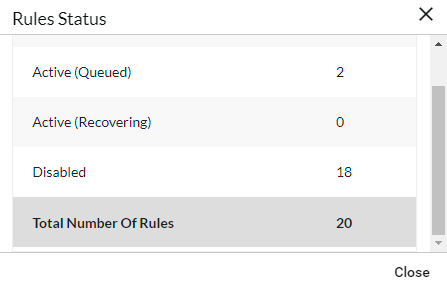
Filter by owner or status, search for a camera or rule, and sort each column by clicking on the column header.
Real-Time Tasks
This screen displays the information for real-time tasks in the RESPOND and RESEARCH modules both from the OX5 and OX6 engines.
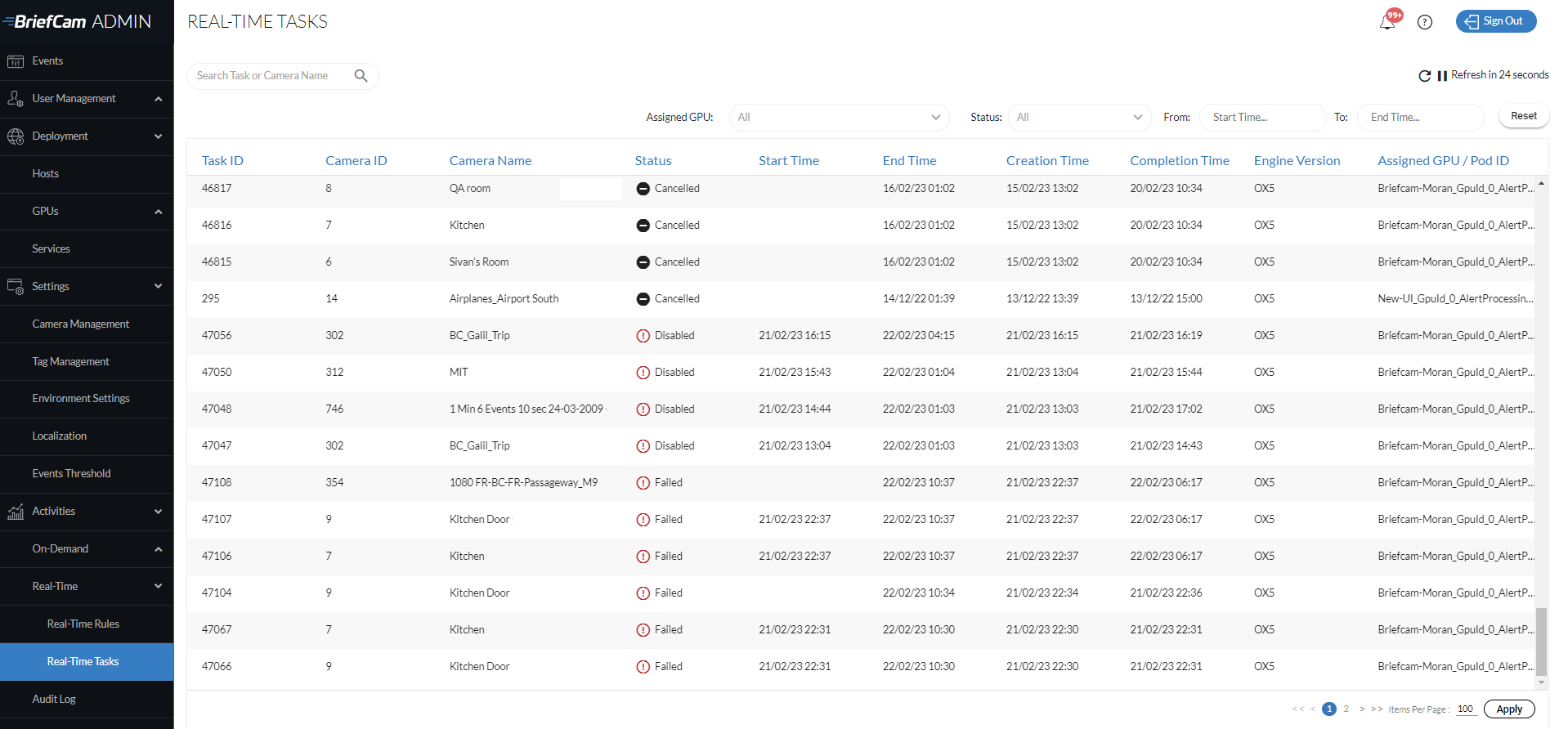
From the top of the screen, you can:
Refresh the list of currently active tasks at any time by clicking the Reload (
) button. When you click the Reload button, the sorting and filters are maintained.Set the screen to refresh every 60 seconds by clicking the arrow to the left of the Refresh in 60 seconds option.
Filter by assigned GPU, status, or creation time search by task ID and camera name, and sort each column by clicking on the column header.
Audit Log
The Audit Log (shown in the image below) is a log of user activities in the system. The audit log is kept, by default, for 365 days. You can change this value in the Maintenance.AuditRetentionDays environment setting.
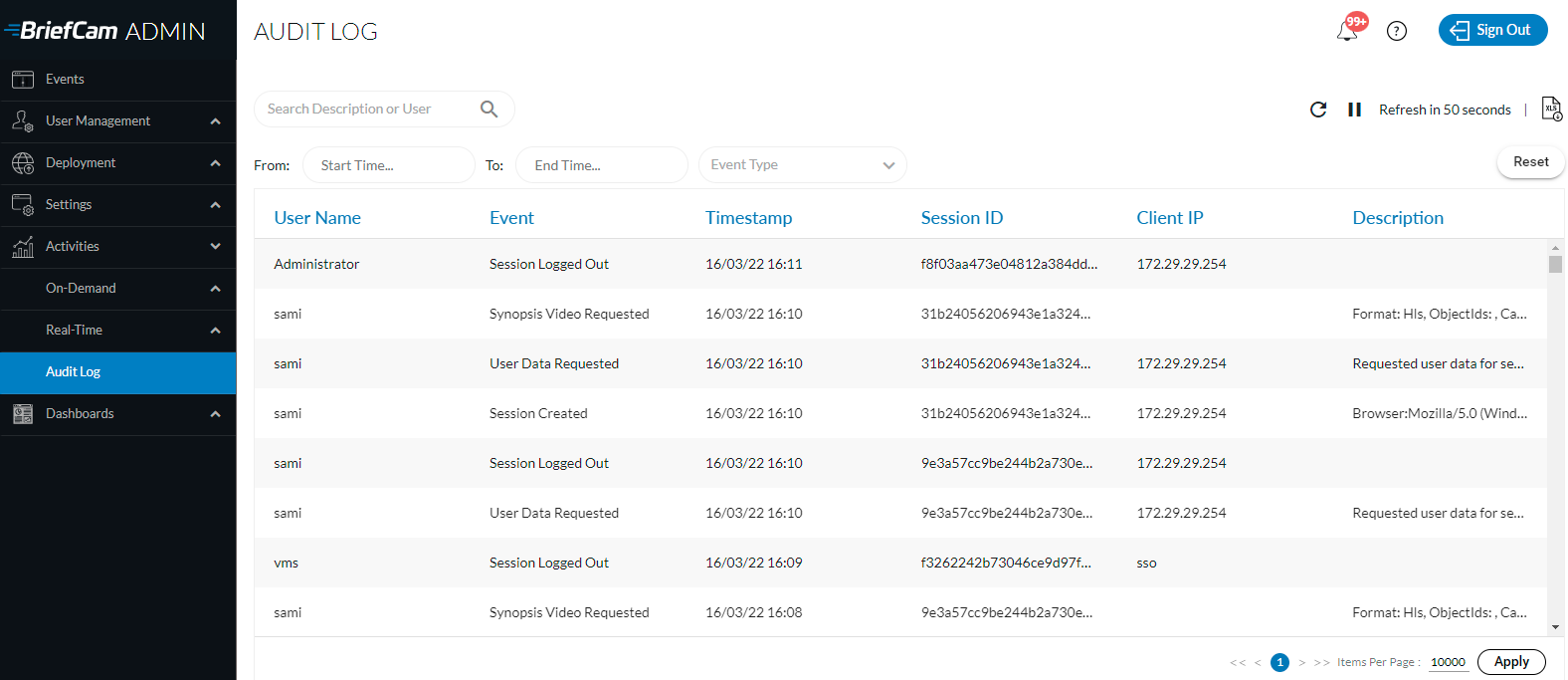
From the top of the screen you can:
Download an .xlsx file of the log.
Refresh the list of currently active activities at any time by clicking the Reload (
) button.Set the screen to refresh every 60 seconds by clicking the arrow to the left of the Refresh in 60 seconds option.
Filter by time range and event type.
Audit Log Events in Standalone and Site Deployments
The following events are stored in the Audit Log:
A case is created, modified, deleted, or exported.
A REVIEW source is created, deleted, moved, or retried.
The original video or VIDEO SYNOPSIS is requested or exported.
A bookmark is changed or deleted.
A selected bookmark is exported.
A clip or original video is exported.
A visual layer is created or deleted.
Identities are uploaded.
A RESPOND rule is created, modified, deleted, enabled, or disabled.
A RESPOND alert is deleted or marked as viewed or unviewed.
A RESPOND VIDEO SYNOPSIS is exported.
A RESEARCH source, rule, or schedule is created, modified, or deleted.
A user session is created, logged out of, or timed out.
User data is requested.
GDPR data or personal information is deleted or exported.
Watchlist added, modified, or deleted.
A resource (such as a case or watchlist) is shared or unshared.
User or group added, modified or removed from the Administrator Console.
User added to or removed from a group in the Administrator Console.
User password or administrator password changed in the Administrator Console.
Directory added, removed, or synchronized in the Administrator Console.
Sync to VMS.