Syncing the Cameras with the VMS
To sync the cameras defined in BriefCam with changes made in the VMS:
Click the zoom (
 ) icon to the right of a directory (VMS server) name and select the Sync to VMS option.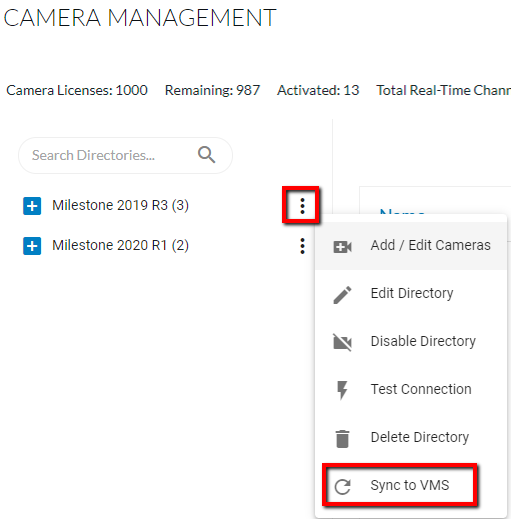
Note that it might take a few seconds for the sync to complete.
When changes are made in the VMS you click the Sync to VMS button, BriefCam:
Updates the camera name, timezone, and path based on the definition in the VMS.
Disables the cameras that were removed from the VMS.
Updates the Last Modified column in the Camera Management screen.
Overrides any manually added coordinates.
Click the sync status to see the sync results including the cameras synced, the cameras disabled and other updates.
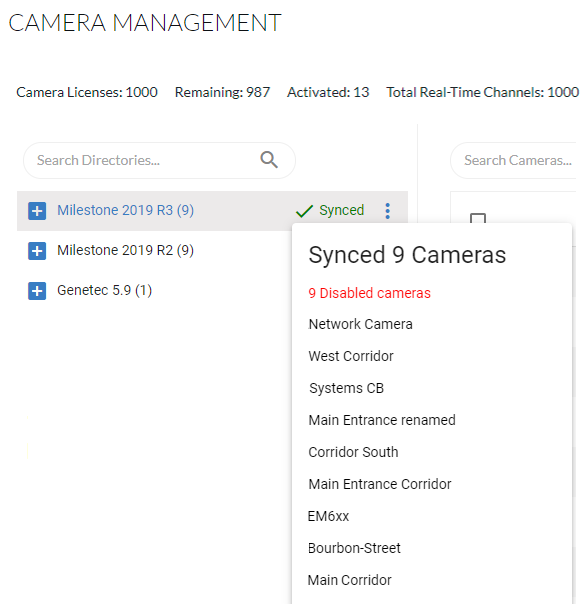
The behavior of the sync is as follows:
For activated cameras, if the camera was disabled or removed in the VMS, the camera will be disabled in BriefCam.
For non-activated cameras, if the camera was disabled or removed in the VMS, the camera will not appear on the cameras list in BriefCam.
If the sync is running and you navigate away from and back to the Camera Management screen, you will not see the syncing icons, even though behind the scenes, the sync might still be running. (The sync process will appear in the log files.)
If you click on the sync button while a previous sync is still running (because the screen was refreshed), two requests will occur simultaneously. The status shown will be the status of the latest request.
If the syncing takes more than five minutes (due to many cameras), the sync indication might not appear, but the sync process will appear in the log files.
The sync will fail if not all the camera names are unique.