Face Recognition-Related Settings
Caution
This functionality is not applicable for the Hub. It is only relevant for sites and in standalone deployments.
Face Recognition Quality
In the Face Recognition pipeline, BriefCam first detects the face and then extracts facial features:
If a face was detected but the feature vector was not calculated, the face will have 1 star.
If a face was detected and a feature vector was calculated, the face will have at least 2 stars.
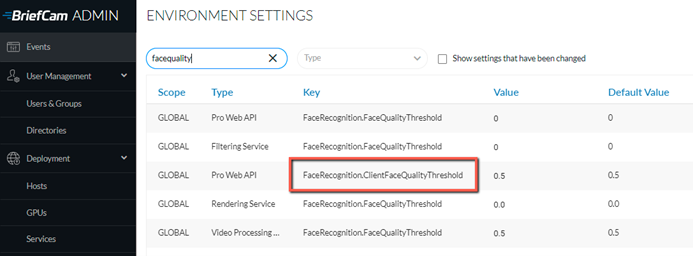
Whether a face is 2 or 3 stars is determined by the FaceRecognition.ClientFaceQualityThreshold environment setting (default 0.5)
If the face score is greater than the value in the FaceRecognition.ClientFaceQualityThreshold setting, the face will be 3 stars.
If the face score is smaller than the value in the FaceRecognition.ClientFaceQualityThreshold setting, the face will be 2 stars.
Face Recognition Matching Scalability
A watchlist can be shared across several Face Recognition Matching service instances. This is done using the AkkaShardingInstancesPerWatchlist environment setting. In this setting, the administrator sets the number of AKKA shard instances per watchlist (the number of installed matching services).
Face Watchlist Upload Limits
BriefCam has built-in default limits regarding uploading faces to a watchlist:
Up to 500 images at a time can be uploaded to a face watchlist. This default can be changed using the clientMaxFaceImagesUploadCount environment setting.
Each face file is limited to 20MB.
Configuring External Watchlists
To enable external watchlists, you need to give the user permissions to view the external watchlists.
To control the path where external watchlists are updated and uploaded to BriefCam as well as how often the watchlist is synced with BriefCam, set the following Admin Settings in the Face Recognition Service section:
ExternalWatchListSync.ExternalFolderScanIntervalMinutes – Set how often the system checks whether there is anything new and then imports it to a watchlist or watchlists. By default, the check is done every 60 minutes.
ExternalWatchListSync.ExternalWatchListRoot – This is the path to the monitored folder on the VS service machine from which users can upload multiple faces. By default, this folder is located at
C:\briefcam\ServerData\ExternalWatchLists.ExternalWatchListSync.SyncMode – Set whether to overwrite the watchlist every sync (so if you delete identities from the folder they’ll be deleted in the system) or merge to only load new items. By default, this is set to
Overwrite.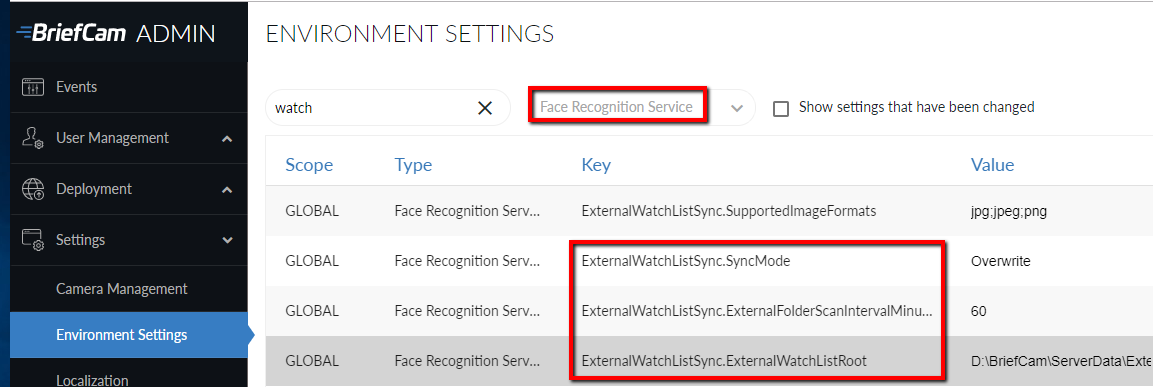
Uploading Multiple Faces from a Monitored Folder
You can upload multiple faces from a monitored folder that will be synced to a watchlist. You can upload multiple faces for identities and multiple identities for each batch.
The monitored folder is on the VS server machine. The default path is: C:\briefcam\ServerData\ExternalWatchLists. Your administrator can change this path for you.
To use this folder on a distributed environment, make sure that BCUser has permissions to access the folder. For an all-in-one installation, this is not necessary.
Every 60 minutes the system checks whether there is anything new and then imports it to a watchlist or watchlists. In the ExternalWatchList folder you can create a subfolder using the name of the watchlist. In the subfolder you need to create folders with names of identities and in each identity’s folder place at least one photo of the identity’s face.
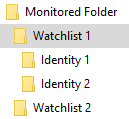
There is an option to either overwrite the watchlist every sync (so if you delete identities from the folder they’ll be deleted in the system) or merge to only load new items. The default is to overwrite.
The default settings for this functionality can be changed by an admin.
Note that all images added using a monitored folder will be added to the watchlist, including images that are below the minimum threshold for face matching, such as no-star images (no face detected) and 1-star images (a face was detected but insufficient quality for Face Recognition). BriefCam will ignore the non-matchable images. If you do not want these images to appear on the watchlist, you need to manually delete them from the folder.
BI Face Recognition Service Settings
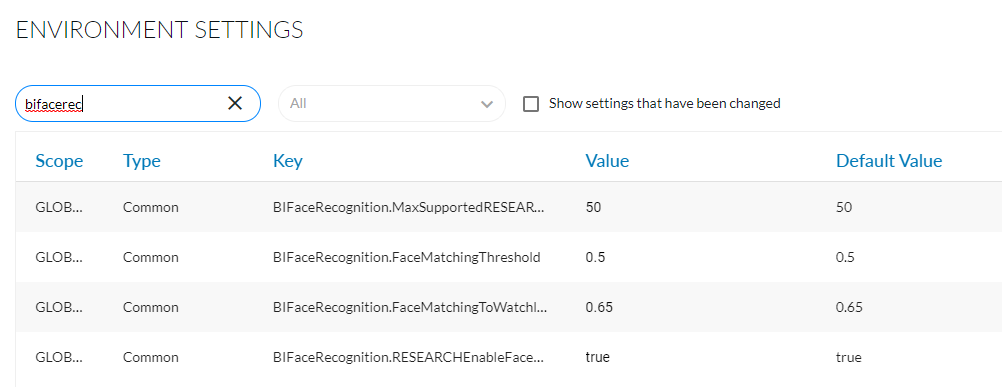
BIFaceRecognition.MaxSupportedRESEARCHSources – Set the maximum number of RESEARCH sources that a source group can handle when face matching is enabled.
BIFaceRecognition.FaceMatchingThreshold – Set the face matching threshold in the RESEARCH module. Valid values are 0-1. This setting provides an additional layer of fine-tuning for the Re-ID process (which connects different occurrences of a face to a single identity). If the setting is set to 1, all face occurrences will be considered the same person. If it’s set to 0, all occurrences (even of the same person) will be counted as different people.
The default is 0.65. In some environments, it may be beneficial to tweak it up or down. For example, if most people in the environment wear a hair covering, they would look more alike to the algorithm. Therefore, it will be beneficial to tweak the algorithm to be more sensitive when connecting face occurrences to identities.
BIFaceRecognition.FaceMatchingToWatchlistThreshold – Set the RESEARCH module’s threshold for face matching of an identity in a watchlist. Valid values are 0-1 and the default value is 0.65.
BIFaceRecognition.RESEARCHEnableFaceRecognition – Disable the Face Recognition feature in the RESEARCH module. The default value is false.
Hiding the Uploading of Faces
Using the HideFacesUpload environment setting, you can turn on and off the ability to upload faces in the BriefCam interface. This includes the Upload Identities button in the Face Recognition filter and the Add Identity and Add Watchlist buttons in the Faces watchlists.
Face Recognition – OX.ini File
High Quality Face Thumbnails
The face thumbnails are compressed by default to 90%. If an even higher quality is required, you can change the JPG compression to 100% (near-lossless compression). This is done in the OX.ini file, by changing the value of the HighQualityFaceJPGs parameter from false (the default) to true.
Optimal Face Recognition Accuracy Alerts
The OX.ini file has a number of face recognition parameters that can be configured for optimal face recognition accuracy alerts when using a watchlist. Note that when improving accuracy, there may be an increase in processing costs, a delay in alerts, and a decrease in general object extraction quality. To change a default value, uncomment the relevant line and update the value.
The relevant settings are as follows and include the recommended settings for a very busy scene when the faces of interest are large:
FullFrameSsdDetection – Change from false to true to improve detection in very crowded scenarios. This may lead to misdetection of small objects.
RealtimeMinCombinedScoreForAttributes – Change from 0.4 to 0.3 to reduce the face quality early termination threshold (when to stop trying to extract face attributes). A lower value may increase accuracy at the expense of processing efficiency.
RealtimeMinCombinedScoreForFeatureExtraction – Change from 0.4 to 0.3 to reduce the face quality early termination threshold (when to stop trying to extract a face feature vector). A lower value may increase accuracy at the expense of processing efficiency. This setting is similar to the one above but is a different stage in the pipeline. Attributes is done before feature extraction.
RealtimeMaxAttributeExtractionsInTrack – Increase the limit on attribute extraction frames from 4 to 16.
RealtimeMaxFeatureExtractionsInTrack – Increase the limit on feature extraction frames from 1 to 4.
RealtimeAlertMaxDelaySeconds – Increase the real-time alert delay from 4 to 30 to get longer tracks.
RealtimeAlertCoolDownSeconds – This parameter sets the cool down period for real-time face recognition alerts. If a person appears a second time within the limit, an alert will not be triggered the second time.