Azure B2C Integration (Deprecated)
Note
This integration is deprecated (because Microsoft has discontinued the sale of Azure B2C) and is available only to customers who have already implemented it.
For the integration with BriefCam to work correctly:
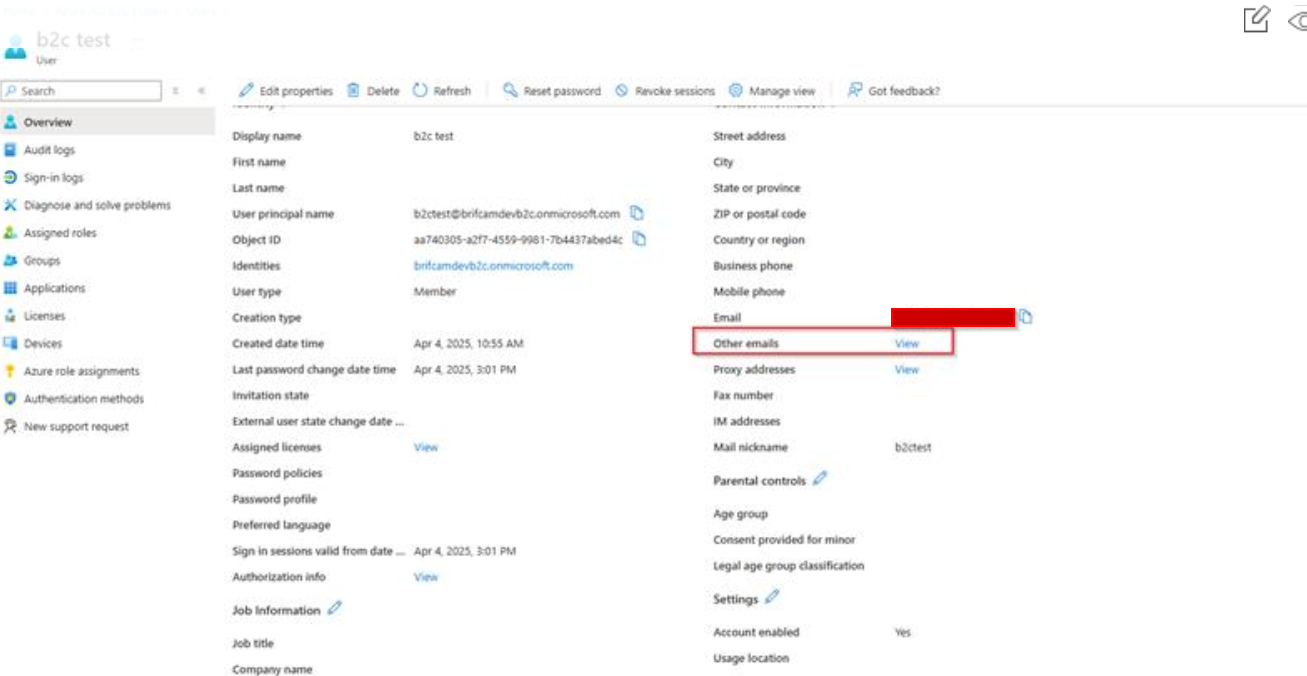
Identity names in Azure must be unique.
The integration can only be used with local users created on the Azure B2C tenant.
MFA (Multi-Factor Authentication) must be disabled for those users.
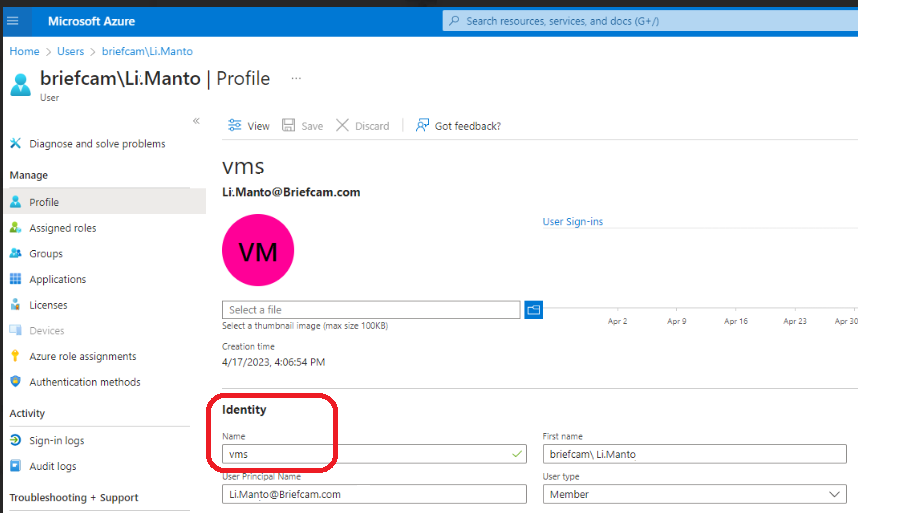
From the Azure Portal, open the AD management page.
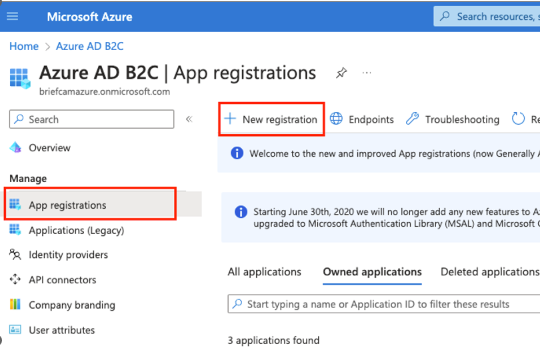
From the Manage menu, select App registrations.
Click New registration to create a new application.
Enter a name, such as
BriefCam App. For the integration to work correctly with BriefCam, the name is required and it needs to be unique.Select the relevant supported account types and click Register.
Select the Authentication tab, click the Add URI button, and enter the following value:
https://<FQDN>/app/login.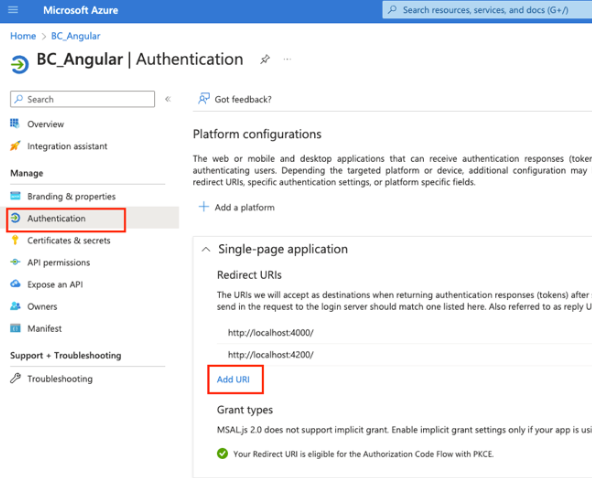
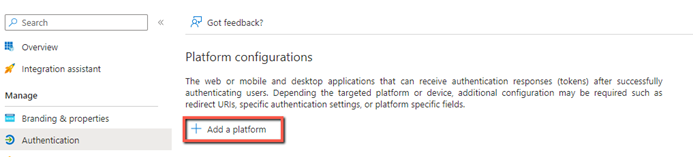
Click the Add a platform button.
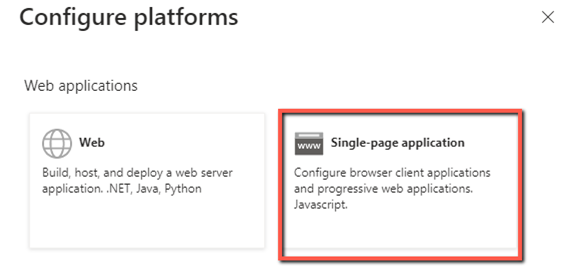
From the right-side of the screen, select Single-page application.
Create a redirect URL. The URL must be
httpsorlocalhost(if you want to usehttp). In addition, the URL should be the application root (not/login).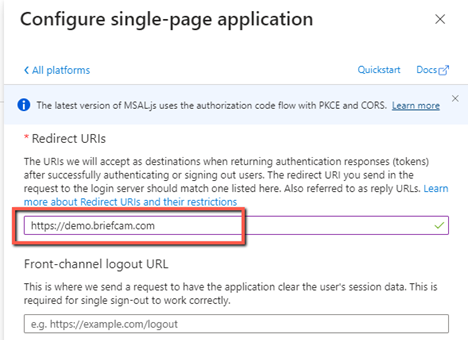
Click the Configure button.
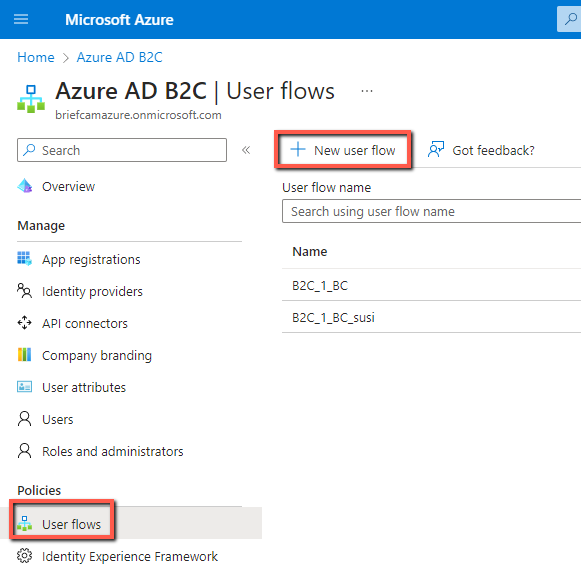
Return to the AD management page and from the Policies menu, select User flows.
Click the New user flow button.
Select the Sign in user flow type.
Select the Recommended version and click the Create button.
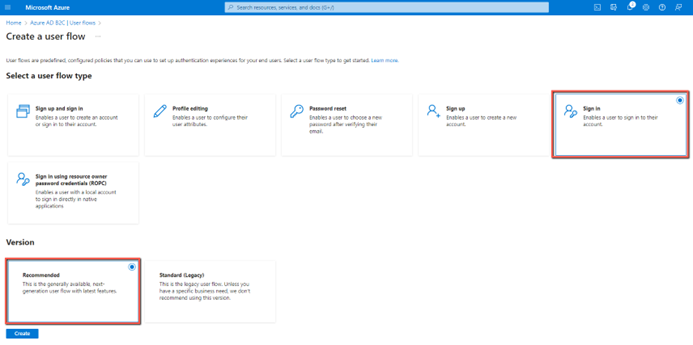
Enter a Name and select the Email sign in local account.
In the Application claims section, click Show more.
Check the Email Addresses checkbox and click the Ok button.
Click the Create button.
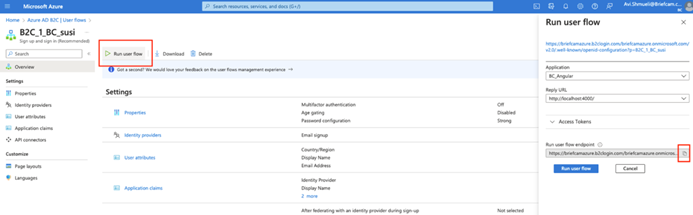
Select the new User Flow that you just created and click the Run user flow button.
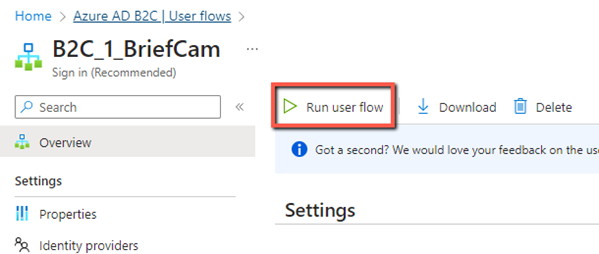
Select an Application and a Reply URL.
From the Run user flow endpoint field, copy the endpoint.
Paste the URL into a text editor, such as Notepad. From the copied URL, you will extract the values to enter into the BriefCam Administrator Console.
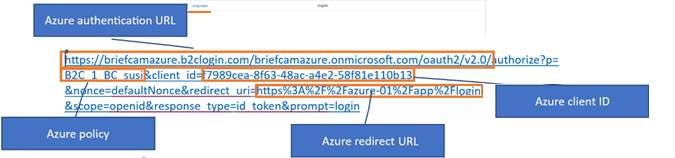
In the BriefCam Administrator Console, set the following environment settings using the values from the redirect URI above:
Azure.AuthenticationUrl
Azure.ClientId
Azure.Policy
Azure.RedirectUrl
Make sure that the user has Other emails configured before testing the Azure authentication.