Belysning ændrer klasse
Som standard vises klassen Belysningsændringer ikke i Klasse- listen. For at vise denne klasse i BriefCam-grænsefladen skal du sætte indstillingen clientEnableBackgroundFilter til .true
Når denne funktion er aktiveret, forøger den de overordnede krav til processorhardware.
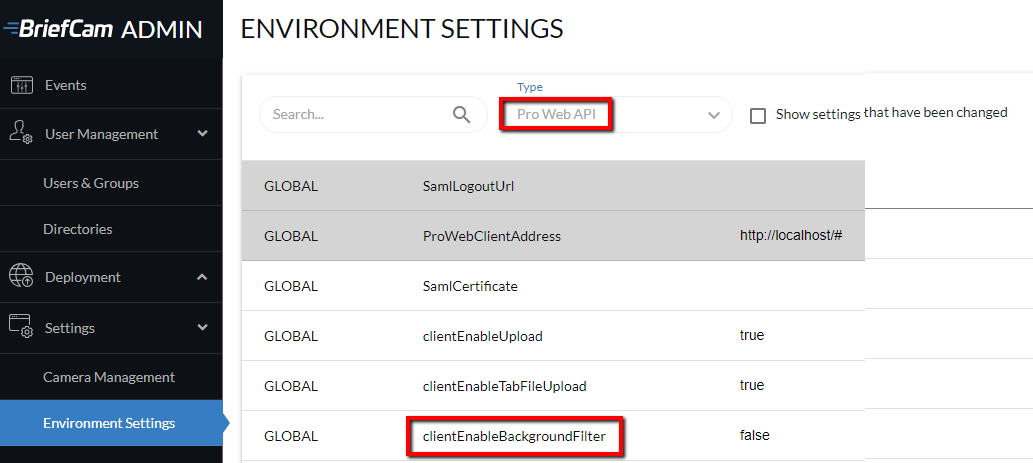
For at klassen Belysningsændringer skal virke ordentligt, skal du konfigurere BriefCam til at køre i højfølsomhedstilstand. For yderligere oplysninger, se Tilstand med høj følsomhed.
I OX.inifilen aktiverer eller deaktiverer parameteren EnableLightSwitchDetection behandlingen af belysningsændringshændelsernes klassifikationer. Denne indstilling skal redigeres manuelt for hver ProcessingAlert- behandlingsforekomst. Som standard er den sat til .false
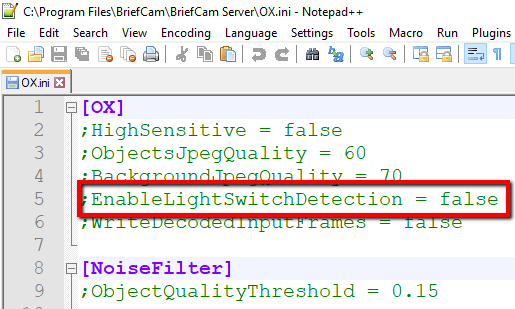
Administratorindstillingen og OX-indstillingen skal enten begge være aktiverede eller deaktiverede for at undgå en overflødig reduktion af ydeevnen eller en misvisende brugergrænseflade.
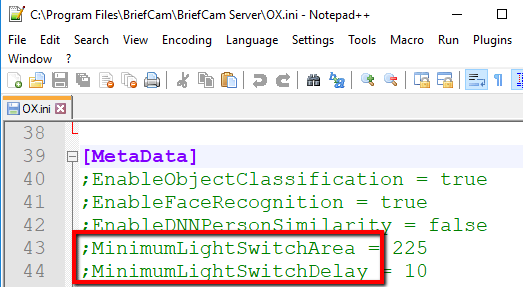
Der er to andre parametre, som kan ændres i OX.inifilen for at tilpasse toleranceniveauerne:
MinimumLightSwitchArea – Det minimale område i pixel af et rektangel, der betragtes som en belysningsændring. Standardværdien er 225 pixel. Som standard vil for eksempel 15x15 pixel passere tærsklen, men 15x14 vil ikke passere.
MinimumLightSwitchDelay – Minimumsforsinkelsen i sekunder mellem tændt lys og slukket lys, der betragtes som en lysændring. Standardindstillingen og den anbefalede indstilling er 10 sekunder. Den understøttede minimumværdi er 8 sekunder.
Hvis denne parameter for eksempel er sat til 10, og lyset tændes og derefter slukkes efter 8 sekunder, så vil ingen af hændelserne (tænd og sluk) blive registreret.
Advarsel
Denne funktionalitet er ikke tilgængelig for hubben. Den er kun relevant for systemer og i separate implementeringer.