

Enable encryption (in English)
Enable encryption to and from the management server
You can encrypt the two-way connection between the management server and the recording server or other remote servers with the data collector (Event Server, Log Server, LPR Server, and Mobile Server).
If your system contains multiple recording servers or remote servers, you must enable encryption on all of them. For more information, see Verschlüsselung des Managementservers (Erläuterung):.
 Prerequisites:
- A server authentication certificate is trusted on the computer that hosts the management server
First, enable encryption on the management server.
Steps:
-
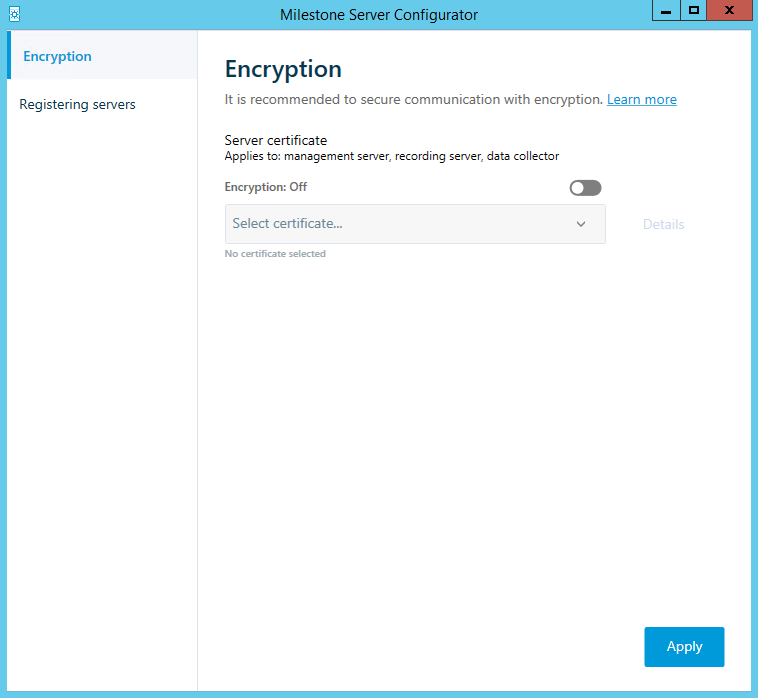
On the computer that runs the management server, right-click the Management Server Manager icon in the notification area and select Serverkonfigurator.
The Serverkonfigurator window appears. The options in this window depend on what servers are installed on the computer.
-
Under Server certificate, turn on encryption and select the certificate to encrypt communication between the recording server, management server and data collector server.
When you select a certificate, a list appears with unique subject names of certificates installed on the local computer in the Windows Certificate Store that has a private key.
Select Details to view Windows Certificate Store information about the selected certificate.
- Click Apply.
To complete the enabling of encryption, the next step is to update the encryption settings on each recording server and each server with a data collector (Event Server, Log Server, LPR Server, and Mobile Server). For more information, see Enable server encryption for recording servers or remote servers.
Enable server encryption for recording servers or remote servers
You can encrypt the two-way connection between the management server and the recording server or other remote servers with the data collector (Event Server, Log Server, LPR Server, and Mobile Server).
If your system contains multiple recording servers or remote servers, you must enable encryption on all of them. For more information, see Verschlüsselung vom Management-Server zum Aufzeichnungsserver (Erläuterung) and Verschlüsselung zwischen dem Management Server und den Data Collector Server (Erläuterung).
Prerequisites:
- You have enabled encryption on the management server, see Enable encryption (in English)
Steps:
-
On each computer that runs a recording server or remote server with a data collector, open the Serverkonfiguratorfrom the Windows startup menu.
The options in this window depend on what servers are installed on the computer.
-
In the Serverkonfigurator, under Server certificate, turn on encryption and select the certificate to encrypt communication between the recording server, management server and data collector server.
When you select a certificate, a list appears with unique subject names of certificates installed on the local computer in the Windows Certificate Store that has a private key.
The recording server service user has been given access to the private key. It is required that this certificate is trusted on all clients.
Select Details to view Windows Certificate Store information about the selected certificate.
- Click Apply.
When you apply certificates, the recording server will be stopped and restarted. Stopping the Recording Server service means that you cannot record and view live video while you are verifying or changing the recording server's basic configuration.
Enable encryption to clients and servers
You can encrypt connections from the recording server to clients and servers that stream data from the recording server. For more information, see Verschlüsselung an alle Clients und Dienste, die Daten vom Aufzeichnungsserver abrufen (Erläuterung).
Prerequisites:
- The server authentication certificate to be used is trusted on all computers running services that retrieve data streams from the recording server
- XProtect Smart Client and all services that retrieve data streams from the recording server must be version 2019 R1 or later
- Some third-party solutions created using MIP SDK versions earlier than 2019 R1 may need to be updated
Steps:
-
On each computer that runs a recording server or remote server with a data collector, open the Serverkonfigurator from the Windows startup menu.
The options in this window depend on what servers are installed on the computer.
-
In the Serverkonfigurator, under Streaming media certificate, turn on encryption and select the certificate to encrypt communication between the clients and servers that retrieve data streams from the recording server.
When you select a certificate, a list appears with unique subject names of certificates installed on the local computer in the Windows Certificate Store that has a private key.
The recording server service user has been given access to the private key. It is required that this certificate is trusted on all clients.
Select Details to view Windows Certificate Store information about the selected certificate.
- Click Apply.

When you apply certificates, the recording server will be stopped and restarted. Stopping the Recording Server service means that you cannot record and view live video while you are verifying or changing the recording server's basic configuration.
To verify if the recording server uses encryption, see Verschlüsselungsstatus an Clients anzeigen.
Aktivieren Sie die Verschlüsselung auf dem mobilen Server.
Wenn Sie für die Verbindung zwischen einem mobilen Server und den Clients und Diensten ein sicheres HTTPS-Protokoll verwenden möchten, müssen Sie auf dem Server ein gültiges Zertifikat installieren. Das Zertifikat bestätigt, dass der Zertifikatsinhaber berechtigt ist, sichere Verbindungen herzustellen. Weitere Informationen finden Sie unter Datenverschlüsselung des mobilen Servers (Erläuterung) und Anforderungen zur Verschlüsselung mobiler Server für Clients.
Von einer ZS (Zertifizierungsstelle) ausgestellte Zertifikate verfügen über eine Zertifikatkette, deren Root das Root-Zertifikat der Zertifizierungsstelle ist. Wenn einem Gerät oder Browser dieses Zertifikat präsentiert wird, vergleicht es das Stammzertifikat mit den im Betriebssystem (Android, iOS, Windows usw.) vorinstallierten Stammzertifikaten. Ist das Stammzertifikat in der Liste der vorinstallierten Zertifikate enthalten, garantiert das Betriebssystem gegenüber dem Benutzer, dass die Verbindung ausreichend sicher ist. Diese Zertifikate werden für einen Domänennamen ausgestellt und sind nicht kostenlos erhältlich.
Zu Aktivierung der Verschlüsselung nach der Installation des mobilen Servers:
- Klicken Sie auf einem Computer, auf dem ein mobiler Server installiert ist, mit der rechten Maustaste auf das Mobile Server Manager-Symbol in der Taskleiste des Betriebssystems und wählen Sie Zertifikat bearbeiten aus.
- Wählen Sie das Kontrollkästchen Verschlüsselung gilt für alle Clients und Dienste, die Datenstreams vom mobilen Server abrufen:
- Zur Auswahl eines gültigen Zertifikates klicken Sie auf
 . Es öffnet sich ein Kasten mit dem Windows-Sicherheitsdialog.
 - Wählen Sie das Zertifikat aus, das Sie anwenden möchten.
- Klicken Sie auf OK.
Zertifikate bearbeiten
Falls das Zertifikat, das Sie für die sichere Verbindung verwenden, abgelaufen ist, können Sie ein anderes auf dem Computer installiertes Zertifikat auswählen, auf dem der mobile Server läuft.
Ändern Sie ein Zertifikat:
- Klicken Sie auf einem Computer, auf dem ein mobiler Server installiert ist, mit der rechten Maustaste auf das Mobile Server Manager-Symbol in der Taskleiste des Betriebssystems und wählen Sie Zertifikat bearbeiten aus.
- Zur Auswahl eines gültigen Zertifikates klicken Sie auf . Es öffnet sich ein Kasten mit dem Windows-Sicherheitsdialog.
- Wählen Sie das Zertifikat aus, das Sie anwenden möchten.
- Klicken Sie auf OK.
Eine Mitteilung informiert Sie darüber, dass das Zertifikat installiert wurde und dass der Mobile Server-Dienst neu gestartet wurde, um die Änderung anzuwenden.